How to hide the notch on a MacBook
You cannot switch the notch off, because it is where the camera lives. You can make the strip around it black, so the notch disappears into it. macOS has three free ways: choose a resolution that stops below the camera, put an app in full screen, or tick one checkbox in an app's Get Info window so that app runs below the camera. On the desktop, a wallpaper with a black top or the free TopNotch app does it too. Each way is below, with what it costs.
Last updated: October 2026
Written by the developer of Crest, a Mac notch app, on 6 October 2026. The three built-in ways were tried on a 16-inch MacBook Pro (Mac16,7) on macOS 27.0.1, with a small test app as the fixture, and every picture is from that Mac. The wallpaper trick and TopNotch were not tried there, and this page says so where they come up. The checkbox, the resolution list and full screen also exist on macOS 26, from Apple's own support article; the exact wording there may differ.
Which way to pick
| Way | Where the notch disappears | What it costs | Tried on macOS 27 |
|---|---|---|---|
| A resolution below the camera | Everywhere, all the time | 37 to 44 points of screen height on the 16-inch | Yes |
| Full screen | In that one app's full screen space | The menu bar slides away while you work | Yes |
| The Get Info checkbox | Whenever that app covers the top of the screen | A strip of screen while that app is open; not offered for every app | Yes |
| A wallpaper with a black top | On the desktop, behind the menu bar | Your choice of wallpaper | No |
| TopNotch | On the desktop, behind the menu bar | Nothing, it is free | No |
1. A resolution that stops below the camera
This is the only way that hides the notch everywhere, all the time. MacBooks with a notch list most screen widths twice: once at full height, and once a little shorter. The shorter one leaves out the strip around the camera, so that strip stays dark and the menu bar moves below it.
- Open System Settings, then Displays.
- Control-click the row of resolution pictures and choose Show List.
- Turn on Show all resolutions, under the list.
- Pick the shorter twin of the size you use. On a 16-inch MacBook Pro the default is 1728 by 1117, and its twin is 1728 by 1080.
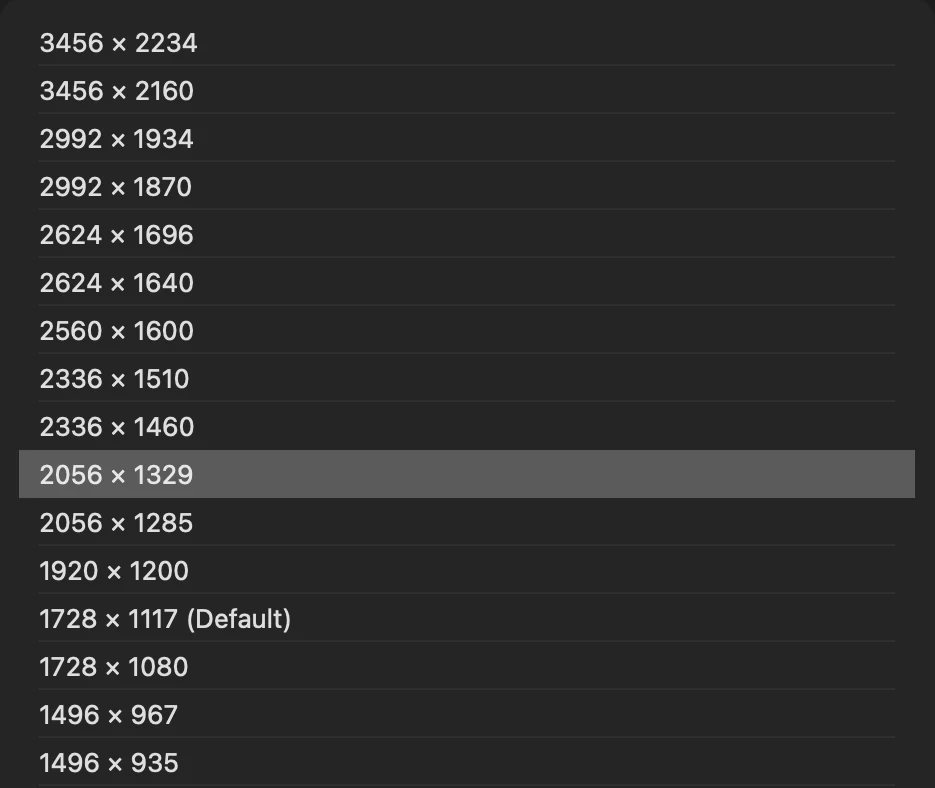
Most widths twice. The shorter of each pair, such as 1728 by 1080 under the default 1728 by 1117, stops below the camera.
What it did on the test Mac: we switched from 2056 by 1329 to 2056 by 1285 for a few seconds. macOS stopped reporting a notch at all, the menu bar became an ordinary 30-point bar running the full width of the screen, with no gap in the middle. The cost is height: 44 points in that pair, 37 in the default pair. The short list, without Show all resolutions, does not include these sizes. We only had a 16-inch to try, so on a 14-inch or a MacBook Air look for the same pattern: two sizes with the same width.
2. Full screen
Click the green button in a window's top-left corner, or choose Enter Full Screen from the app's View or Window menu. macOS fits the app below the camera and turns the strip beside it black.

Before and after. With an app in full screen the strip beside the camera turns black, and the notch disappears into it.
On the test Mac the full screen window came out 2056 by 1290 points, 39 shorter than the screen, and those top 39 points went black. The menu bar slides out of the way while you work, which is the In Full Screen Only choice under System Settings, Menu Bar, Automatically hide and show the menu bar.
3. One app at a time: the Get Info checkbox
Games and some older apps draw over the whole screen, notch area included, and part of the picture ends up behind the camera. A checkbox tells macOS to run that one app below the camera instead.
- Quit the app.
- In the Finder, open Applications and select the app.
- Press Command-I, or choose File, then Get Info.
- Tick Automatically size to fit on screen. That is its name on macOS 27; Apple's support article, written for earlier versions, calls it Scale to fit below built-in camera.
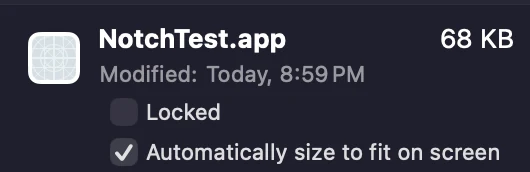
The checkbox, as macOS 27 words it. Apple's own article still calls it Scale to fit below built-in camera.
What it did on the test Mac: our test app drew one window over the entire screen. With the box unticked, macOS told the app the notch was there, 38 points tall. With it ticked, macOS reported no notch while the app was open and kept its picture below the camera.
If the checkbox is missing, the app has told macOS it handles the notch itself. Apple's own apps do not show it (we checked Chess and TextEdit), and on the test Mac 15 of the 56 apps in Applications had opted out, Discord among them.
On the desktop: a black wallpaper strip, or TopNotch
On macOS 27 the menu bar is see-through unless you turn on Show menu bar background in System Settings, Menu Bar. So the top of your wallpaper is what surrounds the notch. Pick a wallpaper whose top edge is black and the notch blends in on the desktop. We did not try this on the test Mac, which runs a live wallpaper app.
TopNotch does the same thing for you: it adapts your own wallpaper so the strip behind the menu bar is black, supports dynamic wallpapers, and can round the top corners. It is free, from MTW, the team behind CleanShot, and needs macOS 11 or later. Its download is version 1.3.2, dated June 2023, and its site does not mention macOS 26 or 27; we did not install it. Both of these only hide the notch on the desktop. Any window or full screen app covering the top brings it back. More in Crest vs TopNotch.
Or put it to work
The other answer is to stop hiding it. Crest is a Mac notch app: the notch stays black, and when you point at it, a panel opens below it with your music, calendar, files and clipboard. It respects every method above: in a full screen app it steps aside, and at a resolution that hides the notch it draws a small pill in the same spot.

Crest's pill on a screen that reports no notch. Captured on a MacBook Pro set to a resolution that stops below the camera, not on a MacBook Neo.
Download Crest to try it. Free tier, no account · 7-day Pro trial, no card · macOS 14 or later
FAQ
Can you turn off or remove the notch on a MacBook?
No. The notch is the housing for the camera, and the screen extends up around it. What you can do is make the strip beside it black, with a resolution that stops below the camera, full screen, the per-app Get Info checkbox, or a black-topped wallpaper.
How do I hide the notch on a MacBook Air M4?
The same ways as on a MacBook Pro: System Settings, Displays, Show List, Show all resolutions, then the shorter of two sizes with the same width; full screen; or the Get Info checkbox. We tested on a 16-inch MacBook Pro, so the exact sizes on an Air will differ.
Does hiding the notch make the screen smaller?
With a resolution below the camera, yes: on the 16-inch MacBook Pro you lose 37 points of height at the default size and 44 at the largest. In full screen the app gets the screen minus the menu bar strip. The Get Info checkbox only costs that strip while the chosen app is open.
Why is Scale to fit below built-in camera missing?
On macOS 27 it is called Automatically size to fit on screen. If neither appears, the app has told macOS it handles the notch itself, or it is one of Apple's own apps, which do not offer it.
Is there a free app to hide the notch?
TopNotch is free and blends the notch into a black strip at the top of your wallpaper. Its current download dates from June 2023 and its site does not mention macOS 26 or 27, so check it on your Mac.
Will hiding the notch bring back hidden menu bar icons?
The resolution method should: macOS then reports no notch and the menu bar runs the full width of the screen, so the icons are no longer stopped halfway. The other methods do not change the menu bar. Other fixes are in menu bar icons hidden behind the notch.
Try Crest free
Download it with no account. Now Playing, the Shelf, the Clipboard and window snapping are free for good, and signing in gives you 7 days of Pro with no card. Pro, with Take and Minutes, is $24.99 once, on 2 Macs, or $2.99 a month.
Download Crest for macOS Get Crest Pro, $24.99Free forever. Pro free for 7 days, no card needed.
macOS 14 Sonoma or later · signed and notarized by Apple · 7-day refund
Keep reading: Menu bar icons behind the notch · MacBook Neo and the notch · Notch dimensions by model · Crest vs TopNotch · Dynamic Island for Mac · Facts and prices · Crest overview