How to zoom in on a screen recording on a Mac
QuickTime Player and Shift-Command-5 cannot zoom, so you add zooms afterwards or use a recorder that makes them. By hand, iMovie is free: select the clip, click the Cropping button, then Ken Burns, and set a start frame and a smaller end frame. Final Cut Pro has the same Ken Burns button, plus keyframes for zooming in and back out. Or use a recorder that zooms on its own: Take zooms in where you click and type, and each zoom is something you can move, change or remove.
Last updated: October 2026
Written by the developer of Take, a Mac screen recorder, on 7 October 2026. Every built-in step and number on this page was measured that day on a 16-inch MacBook Pro (Mac16,7) on macOS 27.0.1, recording test windows of sample text that we drew for the purpose, and every test clip was deleted afterwards. iMovie and Final Cut Pro were not opened: their steps are Apple’s own, read the same day. The Take pictures are from a real take of a demo app made for the Take page; Take was open with its camera switched on, so we did not record a new take for this page.
Zoom by hand in iMovie (free)
- Put the recording in an iMovie project and select the clip in the timeline.
- Click the Cropping button above the viewer, then the Ken Burns button.
- Select the Start frame and drag and resize it to the whole picture. Then select the End frame and make it smaller, around what you want to show.
- Click Apply. For a zoom on one part of the clip, split the clip first so the effect covers only that part.
Ken Burns moves from one frame to the other across the whole clip, so a zoom in and back out means three pieces: before, the zoom, and after. For a zoom that stays put, Crop to Fill does the same with one frame. Apple’s guide says the crop frame is fixed to 16:9. Not tested here.
Zoom by hand in Final Cut Pro
Final Cut Pro has the same Ken Burns button at the bottom of the viewer: Apple calls it “a Crop effect with two crop settings”, green handles for the start and red for the end. For zooms that ease in, hold and ease out, use keyframes: choose Transform (Shift-T), add a keyframe with the button at the top of the viewer, move the playhead, and change the scale. Final Cut Pro is $299.99 once on apple.com, read 7 October 2026, and needs macOS 15.6 or later. Not tested here.
Either way, each zoom is several minutes of work, and you are guessing where the viewer needs it from memory.
What a zoom does to the picture
A zoom is a crop that is enlarged to fill the frame. At 1.8× the viewer sees just over half the width and height of the screen, a third of its area, and the text is 1.8 times bigger. That is why zooms help on a Retina screen recording: the text that was too small to read becomes readable.
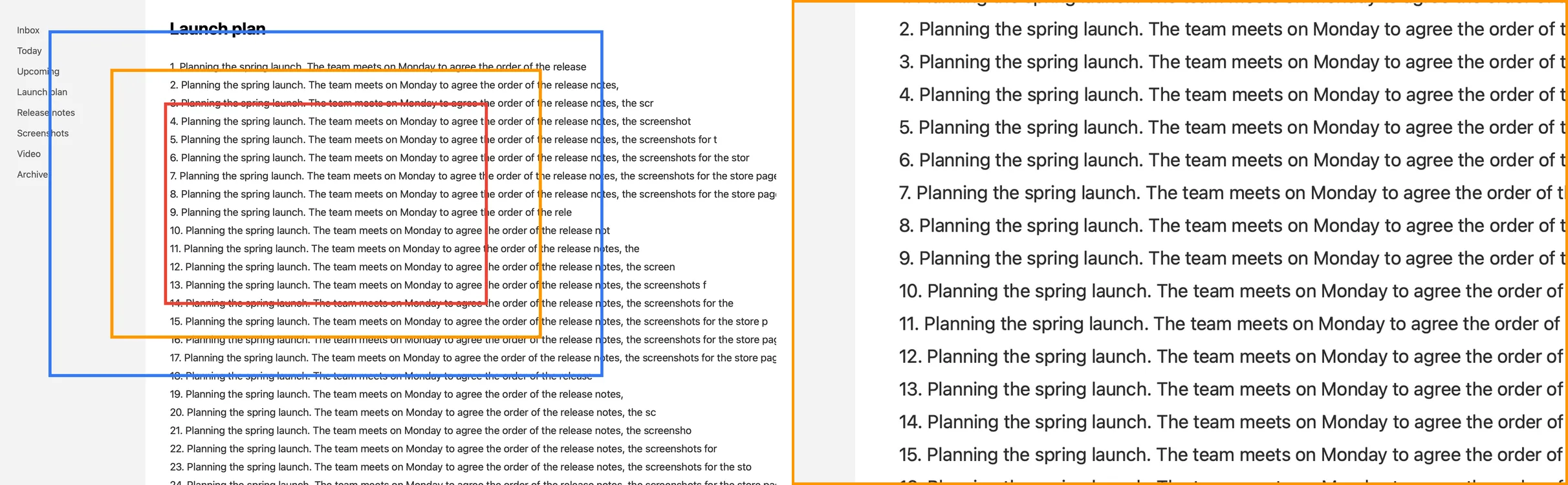
Before and after, by the numbers. Not a Take render: a frame of our built-in test recording with the area each of Take’s levels keeps, Subtle 1.4× (blue), Standard 1.8× (orange) and Close 2.4× (red), and the Standard area enlarged on the right.
The catch is sharpness. A zoom enlarges the pixels you recorded, so record at full resolution if you plan to zoom, and do not zoom much further than 2× on a recording you will export at the same size.
Let the recorder zoom: Take
Take records your clicks and typing alongside the screen, and when you stop it places the zooms from them. No keyframes, no guessing where you clicked.
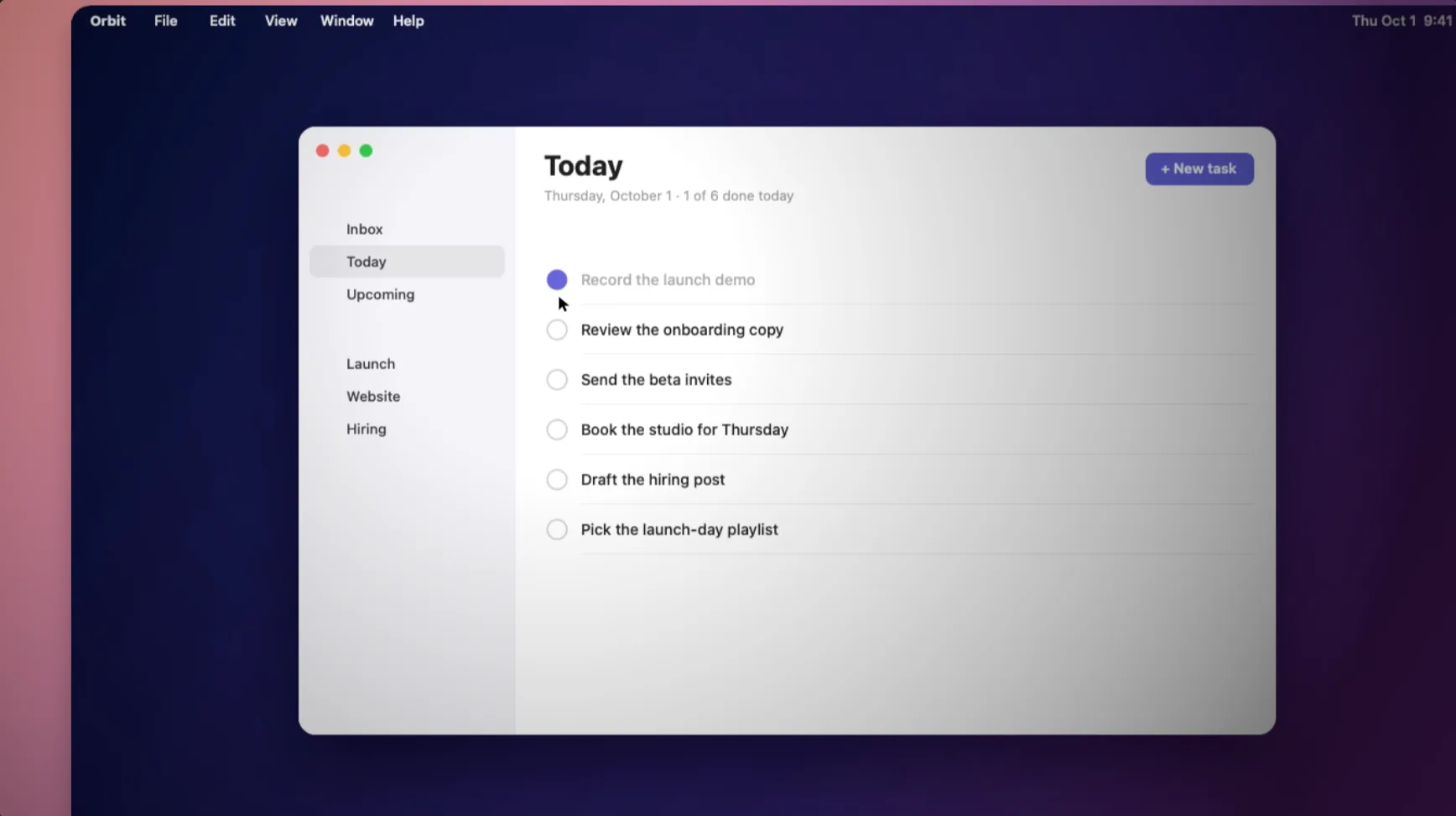
After: a frame from a real Take recording, mid-zoom, pushing in on the task that was clicked. Take made the zoom from the click; nobody keyframed it.
- Where: clicks and typing that happen close together, within about 2.4 seconds and in the same part of the screen, become one zoom that frames all of it.
- When: it pushes in about half a second before the first click and lets go about a second after the last, and never zooms on a pause where nothing happens.
- How far: one of three levels, Close 2.4×, Standard 1.8× or Subtle 1.4×, picked to fit what happened. Takes from an iPhone zoom more gently.

The same take’s strip. The blue pills are the zooms Take placed. Drag one to move it, drag an end to make it longer, click it to change or remove it.
The zooms are pills on the strip under the video. Drag one to move it, drag an end to change how long it lasts, or click it to switch between Subtle, Standard and Close, or Remove it. To add one, click Zoom to put a zoom at the playhead, or double-click the row above the film. Command-Z undoes any change, and the original recording is never altered. When you go live into a call, a Zoom on clicks switch does the same in real time.
Take is not an editor for other recordings: it zooms the takes it recorded, not a file from Shift-Command-5. For a recording you already have, use iMovie or Final Cut Pro as above.
Download Take to try it. Recording and editing are free to try · the 7-day trial starts when you first share · macOS 14 or later
Which way to zoom
| Tool | Cost | How a zoom is made | Zoom out again | Tried here |
|---|---|---|---|---|
| QuickTime Player | Built in | It cannot zoom | No | Yes |
| iMovie | Free | Ken Burns or Crop to Fill, by hand per clip | Split the clip | No |
| Final Cut Pro | $299.99 once | Ken Burns, or Transform keyframes | Yes, with keyframes | No |
| Take | Free to try | On its own from your clicks and typing; move, change or add by hand | Yes, on its own | Pictures of a real take |
More on making a recording look directed, zooms included: how to record a demo video on a Mac.
Sources
- Apple, iMovie User Guide: Add a Ken Burns effect and Crop and rotate clips. Read 7 October 2026; iMovie not opened.
- Apple, Final Cut Pro User Guide: Apply the Ken Burns effect and Animate with keyframes; apple.com/final-cut-pro for the price. Read 7 October 2026; not installed.
- Take 4.0.0: how it places zooms, from its source (the automatic edit, the zoom levels and the strip), and pictures of a real take from the Take page.
FAQ
How do I zoom in on a screen recording on a Mac?
QuickTime cannot. In iMovie, select the clip, click the Cropping button, then Ken Burns, make the End frame smaller and click Apply. Final Cut Pro has the same Ken Burns button and keyframes. Take zooms in where you click on its own.
Can QuickTime zoom in on a video?
No. QuickTime Player can trim, split, rotate and flip, but it has no zoom or crop. You can zoom the player window, which does not change the file.
Is there a screen recorder that zooms in automatically on a Mac?
Yes. Take places a zoom where you click or type, at 1.4, 1.8 or 2.4 times, and you can move, change or remove each one. Screen Studio does this too.
How do I zoom in and then back out in iMovie?
Split the clip where the zoom should start and end, then add the Ken Burns effect to the middle piece only, from the whole frame to a smaller one. Final Cut Pro can do it in one clip with Transform keyframes.
Does zooming in make a screen recording blurry?
It enlarges the pixels you recorded, so a big zoom on a small recording looks soft. A full-screen recording of a 16-inch MacBook Pro still has about 1920 pixels across at 1.8 times, enough for 1080p. Record at full resolution if you plan to zoom.
Recordings that arrive finished
Stop the capture and it is already staged: zooms where you clicked, dead air sped up, a real backdrop, and a plain .mov you own. Comes with Crest: $24.99 once for Crest Pro, Take and Minutes.
Get Take with Crest, $24.99 Try free for 7 daysmacOS 14 or later · Universal · no watermark, ever · 7-day trial, no card up front
Keep reading: Screen recording file size · Notch teleprompters · Trim, cut, crop or speed up · Record a demo video · Best Mac screen recorders · Take overview