Menu bar icons hidden behind the notch? How to get them back
They are not broken and not gone. On a MacBook with a notch, the right side of the menu bar ends at the camera, and any icon that does not fit there is hidden. On macOS 27 a small double arrow appears beside the notch when that happens: click it and the hidden icons show up on the left of the notch. To stop it happening, Command-drag the icons you need to the right, switch off the ones you never use, or tighten the spacing between them.
Last updated: October 2026
Written by the developer of Crest, a Mac notch app, on 6 October 2026. Every step was tried on a 16-inch MacBook Pro (Mac16,7) on macOS 27.0.1, with a small test app that puts numbered icons in the menu bar, so the pictures show test icons and not anyone's real setup. Ice and Bartender are described from their own pages, not tested here. Crest comes last, for the one thing macOS does not do.
Why the notch hides icons
The menu bar is split in two by the camera housing. App menus fill the left side and menu bar icons fill the right side, each stopping at the notch. Nothing is ever drawn under it. On the test Mac, in its More Space setting (2056 by 1329 points), the notch is 220 points wide and leaves 918 points on each side. Every icon-sized item took 38 points, so even an empty right side holds about 24 of them, and the clock, Wi-Fi and Control Center take their share first.
When the icons run out of room, macOS hides the ones nearest the notch, which are usually those of the apps that started last. Apple's guidelines say the system "may hide some to avoid crowding app menus". macOS 27 adds a way to see them, below. We tried everything on this page on macOS 27 only, so we cannot say whether macOS 26 has the same button.
The fix built into macOS 27: the arrows beside the notch

Too many icons. Six test icons fit beside the notch; the other eight are hidden behind the double arrow.
- Look just right of the notch. If icons are hidden, macOS 27 shows a small double arrow pointing left.
- Click it. The hidden icons appear on the left of the notch, where the app menus usually are, and the arrow turns to point right.
- Click the arrows again to put things back.

One click later. The hidden icons, 7 to 14, appear on the left of the notch. Click the arrows again to put them back.
The arrow belongs to macOS itself, not to any app, and VoiceOver reads it as Show Hidden Menu Bar Items. It only appears when something is hidden, so if you never see it, nothing is.
Keep the icons you need where they always fit
The icons nearest the notch are the first to go, so move the ones you use to the right.
- Hold down Command.
- Drag an icon left or right along the menu bar and let go.
- Put the icons you check every day near the clock, and the ones you can live without near the notch.
On the test Mac the new order stuck: we quit the test app, opened it again, and its icons came back where we had dragged them.
Switch off the icons you never use
macOS 27 puts all of this in one place: System Settings, then Menu Bar.
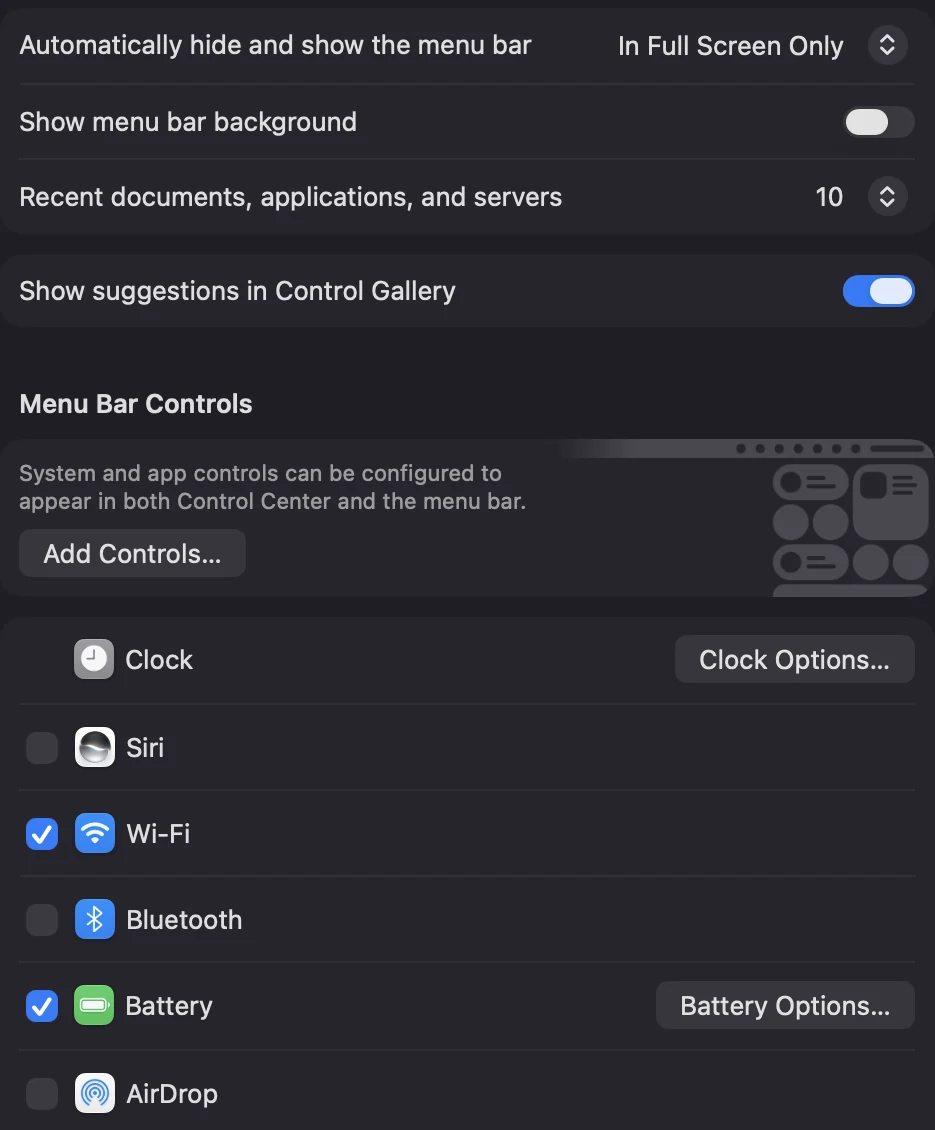
System Settings, Menu Bar. Untick an Apple control here and its icon leaves the menu bar; it stays in Control Center.
- Apple's own icons, such as Wi-Fi, Bluetooth, Battery, Focus and Now Playing, have a checkbox under Menu Bar Controls. Untick one and it leaves the menu bar but stays in Control Center.
- Other apps' icons are listed under Allow in the Menu Bar, further down the same page. Turn one off and, in Apple's words, it is prevented "from ever appearing in the menu bar". The app keeps running.
- Inside the app. Many apps also have their own Show in menu bar setting, and that is the gentler switch when you still want the app. Crest's is in Settings, General: Show Crest in the menu bar.

Further down the same page: a switch for every app that has put an icon in the menu bar.
Tighten the spacing between icons
This one is not in System Settings. Two hidden settings set the gap between icons and the padding around each one. Open Terminal and paste:
defaults -currentHost write -globalDomain NSStatusItemSpacing -int 6
defaults -currentHost write -globalDomain NSStatusItemSelectionPadding -int 6
Then log out and back in. Each app reads the setting when it starts, so apps that were already running keep the old spacing until they restart.
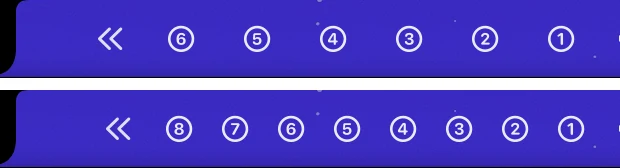
Normal spacing above, spacing 6 below. Each icon took 38 points, then 28. Eight test icons fit where six did.
What it did on the test Mac: every icon-sized item went from 38 points to 28, about a quarter narrower. In the space the Mac had free beside its own icons, six test icons fit before and eight after. Apple does not document these two settings, so treat them as a tweak that a future update could ignore. To undo it, paste these and log out again:
defaults -currentHost delete -globalDomain NSStatusItemSpacing
defaults -currentHost delete -globalDomain NSStatusItemSelectionPadding
Menu bar managers: Ice and Bartender
If you have more icons than any of this can fit, a menu bar manager hides the ones you choose and brings them back on demand. We did not install either on the test Mac.
- Ice is free and open source (GPL-3.0) and needs macOS 14 or later. Its README lists a separate bar for hidden icons "for MacBooks with the notch". The last full release, 0.11.12, is from October 2024, and the newest build, 0.11.13-dev.2 from September 2025, is marked as a pre-release. Its issue list has open reports about macOS 26.
- Bartender is paid, with a 4-week trial, sold as a one-time licence or a yearly Pro plan. Its site says Bartender 7 "is built for macOS 27" and can "automatically hide items that would be hidden by the notch, and bring them back with a click or hotkey". On macOS 26 it points you to Bartender 6.
On macOS 27 the built-in arrows cover the basic case for free, so try them first.
Or move what those icons show into the notch
A lot of menu bar icons exist to show one small thing: CPU load, a battery, the next meeting, the weather. Crest puts those in widgets that open from the notch, so the icons can go. Its System widget shows CPU, memory and network, Batteries shows the Mac and your headphones and mouse, and there are Calendar and Weather widgets too. Those four are part of Crest Pro; Now Playing, the Shelf and the Clipboard are free. Crest adds one icon of its own, which you can switch off in its Settings, General.

Download Crest if you want to try it. Free tier, no account · 7-day Pro trial, no card · macOS 14 or later
FAQ
Why are my menu bar icons hidden behind the notch?
Because the right side of the menu bar ends at the camera housing. Icons fill in from the right, and the ones that do not fit beside the notch are hidden, never drawn under it. On a 16-inch MacBook Pro in its 2056 by 1329 setting that side is 918 points wide, and each icon takes about 38.
Where do hidden menu bar icons go on macOS 27?
Behind a small double arrow just right of the notch. Click it and the hidden icons appear on the left side of the notch; click it again to put them back. It only shows up when something is hidden.
How do I rearrange menu bar icons on a Mac?
Hold Command and drag an icon along the menu bar. Keep the ones you use most near the clock: the icons nearest the notch are hidden first. The new order stays after the app restarts.
How do I remove an icon from the menu bar?
Open System Settings, then Menu Bar. Untick Apple's controls under Menu Bar Controls, or turn an app off under Allow in the Menu Bar. Many apps also have their own Show in menu bar setting.
Can I make menu bar icons closer together?
Yes, with two Terminal commands that set NSStatusItemSpacing and NSStatusItemSelectionPadding to 6, then a log out. On the test Mac each icon went from 38 to 28 points wide. Apple does not document these settings; deleting them puts the spacing back.
Does a different screen resolution help?
A larger setting gives the menu bar more points, so more icons fit. A resolution that stops below the camera removes the notch from the menu bar altogether: macOS then reports no notch and the bar runs the full width. That costs a strip of screen height. The steps are in how to hide the notch.
Try Crest free
Download it with no account. Now Playing, the Shelf, the Clipboard and window snapping are free for good, and signing in gives you 7 days of Pro with no card. Pro, with Take and Minutes, is $24.99 once, on 2 Macs, or $2.99 a month.
Download Crest for macOS Get Crest Pro, $24.99Free forever. Pro free for 7 days, no card needed.
macOS 14 Sonoma or later · signed and notarized by Apple · 7-day refund
Keep reading: Hide the notch · MacBook Neo and the notch · Notch dimensions by model · Crest vs TopNotch · Dynamic Island for Mac · Facts and prices · Crest overview