Where do screen recordings go on a Mac?
To your Desktop, as a .mov file named Screen Recording with the date and time, for example Screen Recording 2026-10-07 at 12.38.34 AM.mov. To change it, press Shift-Command-5, click Options and pick a place under Save to. On macOS 27 the choice you make there also changes where screenshots go.
Last updated: October 2026
Written by the developer of Take, a Mac screen recorder, on 7 October 2026. Every built-in step on this page was tried on a 16-inch MacBook Pro (Mac16,7) on macOS 27.0.1, recording a window of sample text, and every test file was deleted afterwards. The Save to setting was then put back to Desktop.
Change where they go
- Press Shift-Command-5.
- Click one of the three record buttons, so the menu shows the recording choices.
- Click Options and pick Desktop, Documents, Mail, QuickTime Player or Other Location under Save to.
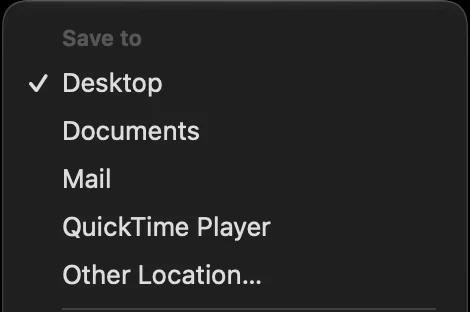
Shift-Command-5, a record button, then Options. Desktop is ticked until you pick something else.
A folder you pick with Other Location stays in the menu by name, so switching back is one click. The list is different in screenshot mode: it adds Clipboard and Preview and leaves out QuickTime Player. But the place is shared. When we picked Documents for a recording, the setting for screenshots moved to Documents as well.
What each choice did
| Save to | What happened when we stopped |
|---|---|
| Desktop | A .mov file on the Desktop, about 5 seconds after Stop |
| Documents, or a folder from Other Location | The same file in that folder. We tried a folder of our own |
| QuickTime Player | The recording opened in QuickTime, and the file was also saved on the Desktop |
| Not tried |
The file name has a detail that trips up scripts: the space before AM or PM is a narrow no-break space, not a normal one. Finder does not care, but a Terminal command that types the name with a normal space will not find the file.
Cannot find a recording?
- Wait a few seconds. With Show Floating Thumbnail on, the file appears when the thumbnail in the corner leaves.
- Check Save to. Press Shift-Command-5 and open Options: the ticked place is where it went.
- Search. Press Command-Space and type Screen Recording, or open Recents in a Finder window.
- Recorded on an iPhone? Those go to the Photos app, not to a folder on your Mac.
If no file was written at all, see screen recording not working on a Mac.
Where Take keeps recordings
Take keeps every take in your Movies folder, in a folder called Take, as a plain .mov file with a small file beside it that holds the edits. Delete one in Finder and it is gone. To open the folder or move it, use Settings, Files: Show opens it in Finder, and Change moves every take to a folder you pick, such as an external drive, while Movies, Take keeps pointing there.
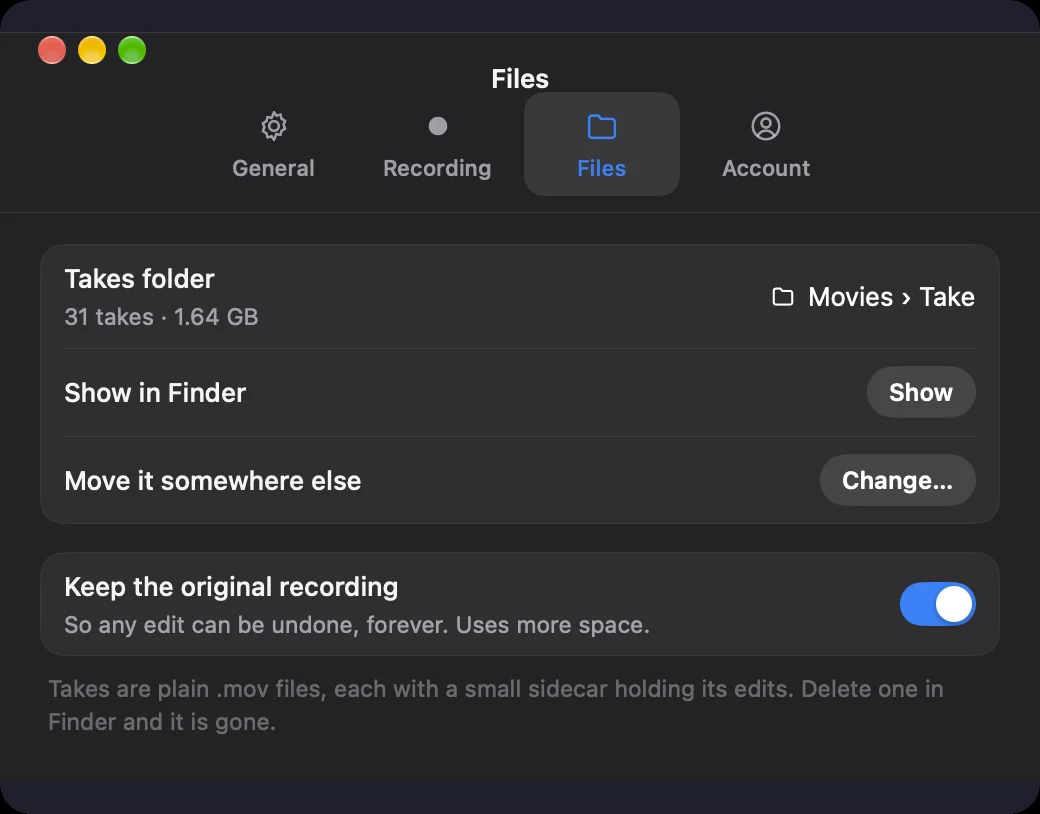
Take, Settings, Files. Show opens the folder; Change moves it.
The video you share is a separate file. The Share sheet says where it goes before you save, Movies, Take, Exports unless you pick another folder, and it shows the size first. Our 6.8 second test was estimated at 4.5 MB at 720p and came out at 3.9 MB.
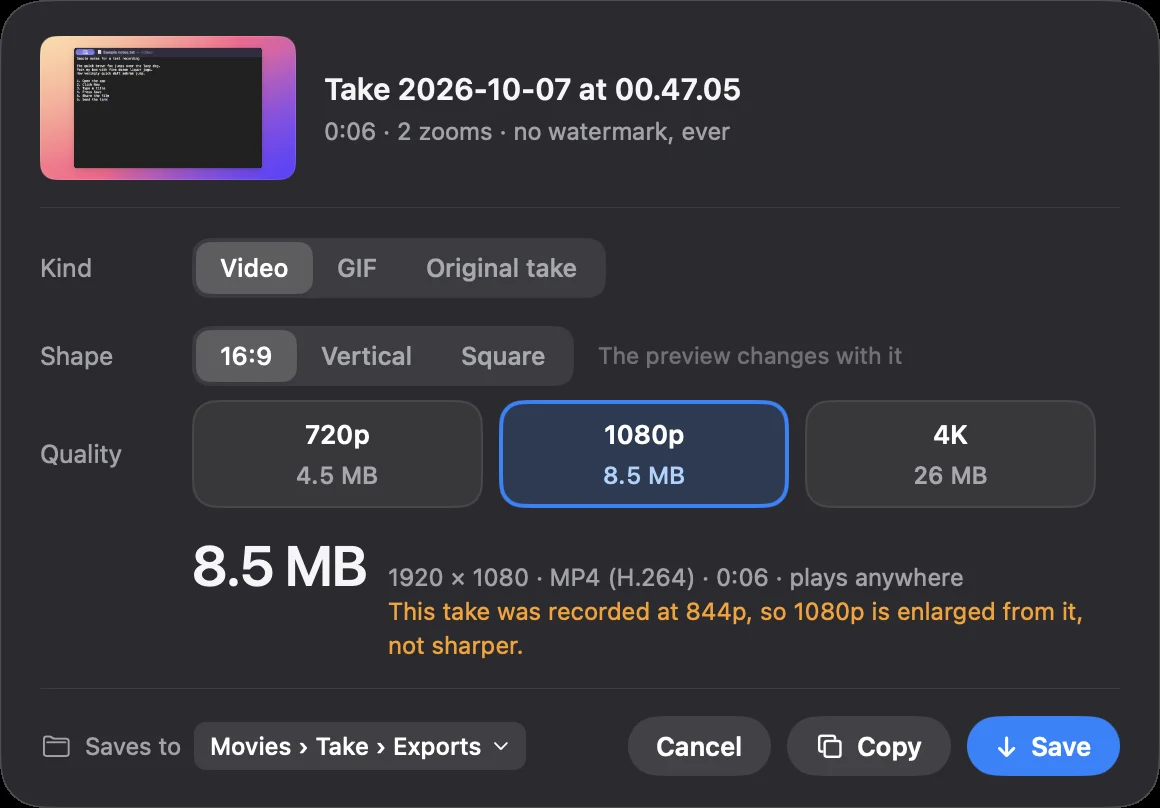
Take's Share sheet. The size is shown before you save, and Saves to says where the file goes.
Download Take to try it. Recording and editing are free to try · the 7-day trial starts when you first share · macOS 14 or later
FAQ
Where do screen recordings go on a Mac?
To the Desktop, as a .mov file named Screen Recording with the date and time, unless you picked another place in Shift-Command-5, Options, Save to.
How do I change where screen recordings are saved?
Press Shift-Command-5, click a record button, click Options and choose a place under Save to, or Other Location for any folder. On macOS 27 this also changes where screenshots go.
Where do QuickTime screen recordings go?
On macOS 27, QuickTime's New Screen Recording uses the same toolbar, so the same Save to setting applies. With Save to set to QuickTime Player, our recording opened in QuickTime and was also saved on the Desktop.
Why can't I find my screen recording?
Wait a few seconds after stopping, because the file appears when the thumbnail leaves. Then check the ticked place under Options, Save to, or search for Screen Recording with Spotlight.
Where does Take save recordings?
In Movies, Take, as plain .mov files. Shared videos go to Movies, Take, Exports unless you choose another folder in the Share sheet. Settings, Files can move the whole folder.
Recordings that arrive finished
Stop the capture and it is already staged: zooms where you clicked, dead air sped up, a real backdrop, and a plain .mov you own. Comes with Crest: $24.99 once for Crest Pro, Take and Minutes.
Get Take with Crest, $24.99 Try free for 7 daysmacOS 14 or later · Universal · no watermark, ever · 7-day trial, no card up front
Keep reading: Screen recording not working · Stop a screen recording · Trim, cut, crop or speed up · Record with internal audio · Best Mac screen recorders · Take overview