How to screen record on a Mac with internal audio
On macOS 27 you need nothing extra: press Shift-Command-5, click Options, tick Include System Audio, then click Record. We tried it on a 16-inch MacBook Pro running macOS 27.0.1. With the box ticked, a test tone landed in the file at the level it was played. With it unticked, the file had no sound track at all. If your Options menu has no such line, use an app that records the Mac's sound, such as OBS (free) or Take, or the free BlackHole driver.
Last updated: October 2026
Written by the developer of Take, a Mac screen recorder, on 6 October 2026. The built-in steps and every measurement were done on a 16-inch MacBook Pro (Mac16,7) on macOS 27.0.1, recording a sample slide. OBS and BlackHole were not installed on that Mac: what this page says about them comes from their own documentation, read the same day, and is marked not tested here.
The built-in way: Shift-Command-5
- Press Shift-Command-5. The screenshot toolbar opens at the bottom of the screen.
- Click one of the three record buttons: the whole screen, one window, or a part of the screen you drag out.
- Click Options and tick Include System Audio, under Capture. To add your voice as well, pick a microphone under Microphone in the same menu.
- Click Record. To stop, click the stop button in the menu bar or press Command-Control-Escape. The file goes to the Desktop unless you chose another place under Save to.
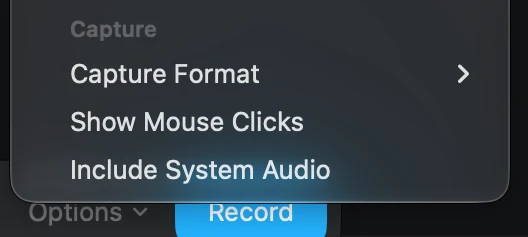
Shift-Command-5, Options, on macOS 27. Include System Audio sits under Capture, below the microphone list. It starts unticked.
QuickTime Player's File, New Screen Recording opens the same toolbar on macOS 27, so the same switch works there. The microphone list and the system audio switch are separate: Microphone set to None only means your voice is left out.
What we measured
| Recording | Sound in the file |
|---|---|
| Include System Audio off, Microphone None | No sound track at all |
| Include System Audio on | A 48 kHz stereo track. The test tone measured -26 dBFS, the level it was played at |
| Take, Area, its sound switch on | The same tone at -26 dBFS, on its own track |
| Take, one window | Only that window's app. A tone from another app was left out |
How: a 660 Hz tone, three one-second beeps, played by macOS's own afplay command while recording a sample slide, then read back from each file with ffmpeg. The Mac's volume was at 56 percent and the tone still arrived at full level, so turning the speakers down does not make the recording quieter. Anything else the Mac was playing at the time landed in the file too, so pause music and turn on Do Not Disturb first. Eight seconds of a 1920 by 1200 pixel area of a still slide came to 4.07 MB with sound, about 1.8 GB an hour.
If your Mac has no Include System Audio
Apple's own guide to Shift-Command-5 lists only microphones and does not mention the switch yet. We only had macOS 27 to check. If your Options menu stops at Show Mouse Clicks, these free routes record the Mac's sound. Neither was installed or tested here.
- OBS Studio. Free. OBS's guide says that from version 30, on macOS 13 or later, you add a macOS Audio Capture source for all of the Mac's sound or one app's, with no extra driver.
- BlackHole. A free, open source virtual audio driver (GPL-3.0) for macOS 10.10 or later. You make a Multi-Output Device in Audio MIDI Setup so you still hear the sound, set it as the output, then pick BlackHole as the microphone in your recorder. It takes a few minutes to set up, and you change the output back afterwards.
With Take
Take records the sound your Mac plays unless you turn it off, with no driver to install. In the recording that sound sits on its own track next to your microphone, and the file you share mixes the two. Take leaves its own sounds out.
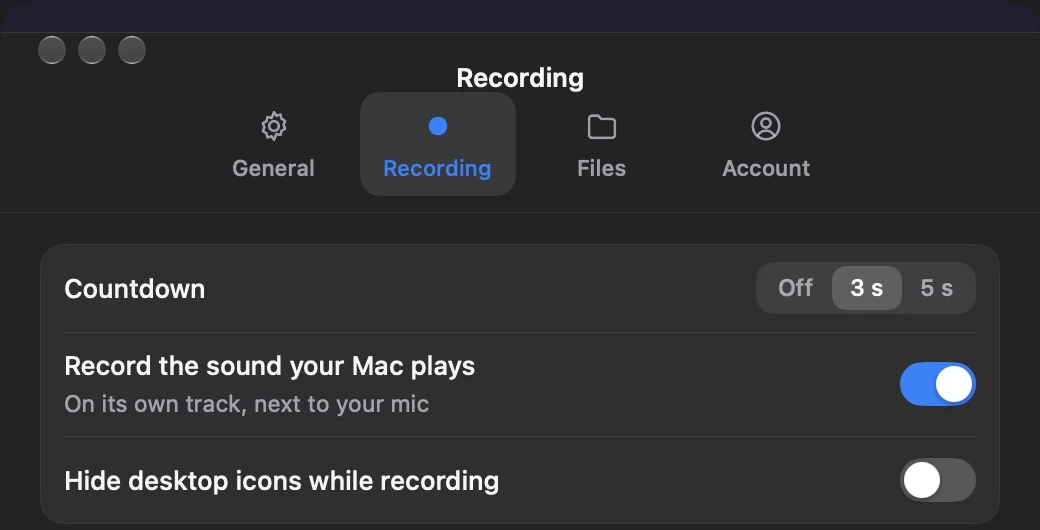
Take, Settings, Recording. The Mac's sound is on unless you turn it off, and it goes on its own track.
One thing to know: when you record a single window, Take records only the sound of the app that owns it. In our test a QuickTime window kept its sound, and a tone played by another app did not get in. To record everything the Mac plays, choose Screen or Area. Take also edits the recording when you stop, with zooms where you clicked and dead air sped up. If all you need is a file with sound and you are on macOS 27, the built-in switch above is enough.
Download Take to try it. Recording and editing are free to try · the 7-day trial starts when you first share · macOS 14 or later
A recording with no sound? Check these
- Include System Audio is unticked. It starts unticked.
- You picked a microphone and expected the Mac's sound. They are two settings. The microphone only hears the room.
- You recorded one window in Take. Only that app's sound is kept. Record Screen or Area instead.
- A third-party recorder has no permission. Turn it on in System Settings, Privacy & Security, Screen & System Audio Recording, then quit and reopen the app. More fixes: screen recording not working.
FAQ
How do I screen record on a Mac with internal audio?
On macOS 27, press Shift-Command-5, click Options, tick Include System Audio, then click Record. On an older macOS, use an app that records the Mac's sound, such as OBS or Take, or route the sound through the free BlackHole driver.
Can QuickTime record internal audio?
On macOS 27, yes. QuickTime Player's File, New Screen Recording opens the same toolbar as Shift-Command-5, with Include System Audio under Options.
Why does my Mac screen recording have no sound?
Usually because Include System Audio is unticked, or because only a microphone was picked. With the switch off and no microphone, our test file had no sound track at all.
Do I still need BlackHole on macOS 27?
Not to screen record with the Mac's sound: the built-in switch does that. BlackHole is still useful for sending sound from one app into another.
Does lowering the volume make the recording quieter?
No. With the Mac at 56 percent volume, our test tone reached the file at the full level it was played at.
Can I keep my voice and the Mac's sound on separate tracks?
Take records them on separate tracks and mixes them when you share. We did not check how Shift-Command-5 stores the two.
Recordings that arrive finished
Stop the capture and it is already staged: zooms where you clicked, dead air sped up, a real backdrop, and a plain .mov you own. Comes with Crest: $24.99 once for Crest Pro, Take and Minutes.
Get Take with Crest, $24.99 Try free for 7 daysmacOS 14 or later · Universal · no watermark, ever · 7-day trial, no card up front
Keep reading: Record your screen and your face · Record a webinar · Record a call · No watermark, no time limit · Best Mac screen recorders · Take overview