Notch teleprompters for Mac, and do they show up in your recording?
A notch teleprompter puts your script in a small strip just under the MacBook camera, so you look almost at the lens while you read. Notchie, CueNotch and NotchPrompter are the ones built for it. Whether it shows up in your recording depends on the recorder: these apps ask macOS to leave their window out of captures, and in our test on macOS 27 the built-in recorder did. But Apple’s own documentation says not to rely on that request, and developers report recorders that ignore it. The sure way: record a window, or an area below the menu bar, so the notch is never in the shot.
Last updated: October 2026
Written by the developer of Take, a Mac screen recorder, on 7 October 2026. The three teleprompter apps are described from their own sites, App Store listings and code, read that day; we did not install or test any of them. The capture test used a test window we drew ourselves on a 16-inch MacBook Pro (Mac16,7) on macOS 27.0.1, and the clips were deleted afterwards. Take has no teleprompter, and Crest retired its Prompter module in 2026.
The three notch teleprompters
| App | Price, read 7 October 2026 | Needs | What it does | What it says about recordings |
|---|---|---|---|---|
| Notchie | $29.99 on the Mac App Store | macOS 14.6 | Scrolls when you speak, pauses when you pause; hover over the notch to pause | “Excluded from screen sharing in supported apps” |
| CueNotch | Free with limits (3 starts a day, 100-word scripts); Pro $29.99 once or $7.99 a week | macOS 14 | Scrolls with your voice, Siri, shortcuts, captions, a rehearsal coach | Ghost Mode (Pro) hides it from capture, but “a few apps and macOS versions ignore the request” |
| NotchPrompter | Free from its site; $4.99 on the US App Store | macOS 14 (14.6 on the App Store) | Voice start, speed, size and font, several displays, shortcuts | “Won’t show up in screen recordings, Zoom, Meet, or any screen sharing tool” |
From each app’s own site and App Store listing. Not tested here.
All three scroll your script near the notch and can follow your voice. Notchie is a one-time purchase. CueNotch is free to try with a daily limit, and hiding from capture is part of Pro. NotchPrompter is the cheapest. Its code is public on GitHub, but its licence allows personal, non-commercial use only, so it is source-available rather than open source in the usual sense. Two more small projects are free: Notchprompt, open source on GitHub, and Snotch, listed on Product Hunt. We did not look into them further.
Do they show up in a screen recording?
These apps ask macOS to leave their window out of captures. NotchPrompter’s public code shows how, in one line, window.sharingType = .none, when its hide option is on; Notchie and CueNotch do not say how they do it. Whether that works is up to the recorder, not the prompter, and Apple is blunt about it. Its documentation calls the setting “a legacy constant that macOS no longer uses” and says: “Don’t use this value to hide or omit content from being captured.” On Apple’s developer forums, an Apple engineer wrote in 2024 that “virtually all screen recording/remote control apps operate below the window level”, where the setting has no effect, and developers reported in 2025 that recorders built on ScreenCaptureKit, Apple’s current capture system, still captured such windows on macOS 15.4 and later.
So we tested it on macOS 27.0.1, with our own window in place of a prompter: a black strip of sample script under the notch, marked the same way, over a grey window.
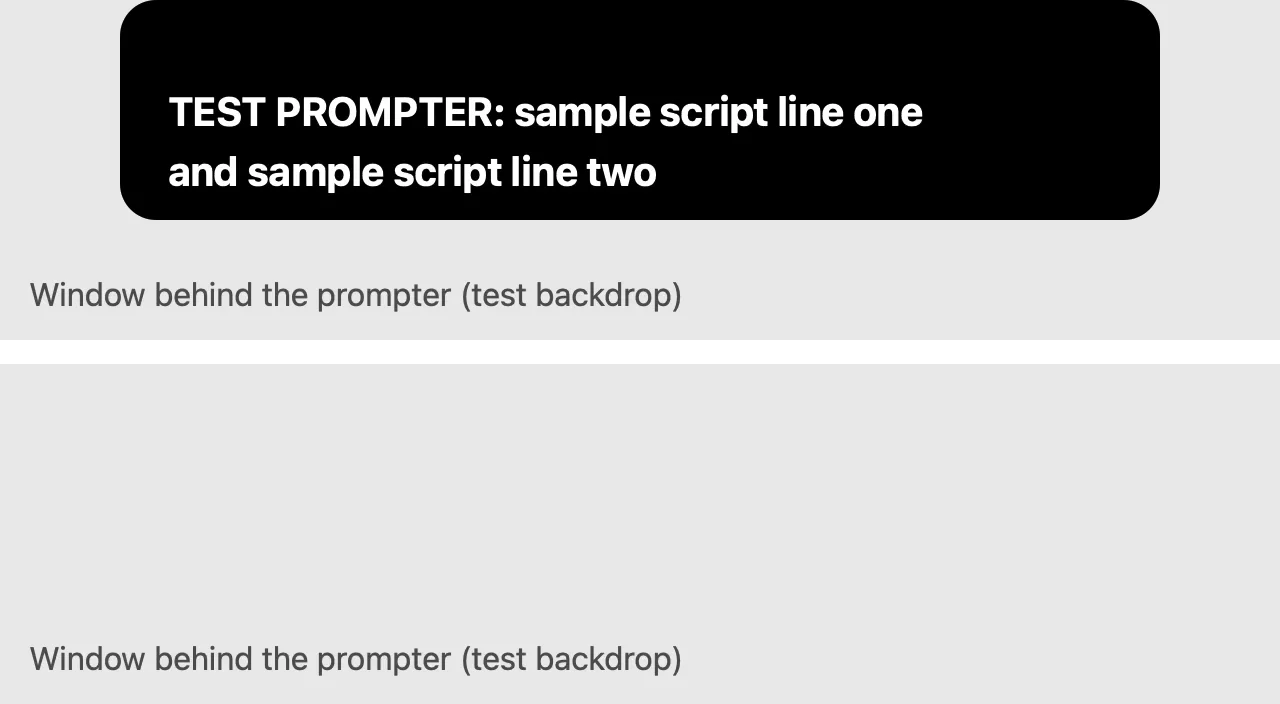
Our test, from the built-in recorder on macOS 27.0.1. Top: a prompter window that allows capture. Bottom: the same window marked hidden from capture, on screen at the time, missing from the recording.
- Shift-Command-5’s recorder (as
screencapture), a screenshot and a 4 second video: the prompter was not there. The grey window behind it was. - A ScreenCaptureKit screenshot of the same area: not there either.
- The control: the same window allowed to be captured appeared in all three.
That is one Mac, one macOS version, and three ways of capturing. We did not test a ScreenCaptureKit video stream, which is how most recorders and call apps capture, nor Zoom, Meet, OBS or the prompter apps themselves. CueNotch says it best: “A few apps and macOS versions ignore the request, so check your share preview before you present.”
Make sure it stays out of the shot
- Record a window instead of the whole screen. In Shift-Command-5, choose Record Selected Window and click the app you are showing. A window recording contains that window only.
- Or record an area that starts below the menu bar: choose Record Selected Portion and draw the frame under the notch.
- If you must record the whole screen, make a 5 second test first and watch it back before the real take.
In a video call, look at your own share preview before you start reading. A prompter that the call app captures shows your script to everyone.
Does a notch teleprompter fix eye contact?
Mostly. The camera sits in the middle of the notch, so text right under it keeps your eyes close to the lens, much closer than a script in a window. Keep the strip short and the lines few, so your eyes do not travel sideways. Speech-following scroll, which all three apps offer, means you do not need to reach for a key while you talk.
Recording yourself with Take
Take has no teleprompter, but it works with one. Record a Window or an Area and the notch is not in the take. Take’s camera bubble records your face on its own track, and you place the bubble in a corner after you stop, so you can read from the notch while the camera sees you looking almost straight at it. Take also trims the start and end and speeds up long pauses, which helps when you stop to find your place in the script.
We did not record a take with a prompter on screen for this page, so we cannot tell you whether a prompter marked hidden shows up in a full-screen Take recording. Record a window or an area and the question does not come up. More on screen and camera together: how to record your screen and your face on a Mac.
Download Take to try it. Recording and editing are free to try · the 7-day trial starts when you first share · macOS 14 or later
Sources
- Notchie: Mac App Store listing and notchie.app. CueNotch: cuenotch.com and its App Store listing. NotchPrompter: notchprompter.com, its GitHub repository and App Store listing. All read 7 October 2026; none installed or tested here.
- Apple Developer, NSWindow.SharingType.none; Apple Developer Forums threads 760234 (July 2024), 792152 (July 2025) and 808016 (November 2025). Read 7 October 2026.
- Our own test, 7 October 2026, on macOS 27.0.1: a test prompter window we drew under the notch, captured with screencapture (still and video) and a ScreenCaptureKit screenshot.
FAQ
Is there a teleprompter app for the MacBook notch?
Yes. Notchie ($29.99), CueNotch (free with limits, Pro $29.99 once or $7.99 a week) and NotchPrompter (free from its site, $4.99 on the US App Store) put your script just under the notch, prices read 7 October 2026. We did not test them.
Is there a free notch teleprompter for Mac?
NotchPrompter is free from its own site, and CueNotch has a free tier limited to 3 starts a day and 100-word scripts. Notchprompt on GitHub is free and open source.
Do notch teleprompters show up in screen recordings?
They ask macOS to be left out, and in our test on macOS 27.0.1 the built-in recorder and a ScreenCaptureKit screenshot left such a window out. Apple says not to rely on this, and some recorders ignore it. Record a window or an area below the menu bar to be sure.
Do notch teleprompters show up in Zoom or Google Meet?
The apps say they are hidden from screen sharing in supported apps, and CueNotch warns that a few apps and macOS versions ignore the request. We did not test Zoom or Meet. Check your share preview before you present.
Does Take have a teleprompter?
No. Take records your screen and camera; you can use any notch teleprompter beside it. Record a window or an area and the notch stays out of the take.
Recordings that arrive finished
Stop the capture and it is already staged: zooms where you clicked, dead air sped up, a real backdrop, and a plain .mov you own. Comes with Crest: $24.99 once for Crest Pro, Take and Minutes.
Get Take with Crest, $24.99 Try free for 7 daysmacOS 14 or later · Universal · no watermark, ever · 7-day trial, no card up front
Keep reading: Screen recording file size · Zoom in on a recording · Trim, cut, crop or speed up · Record a demo video · Best Mac screen recorders · Take overview