Why are Mac screen recordings so big, and how do you shrink them?
Because the Mac records at your screen’s full Retina size, and every moving pixel costs space. A still screen is cheap: our 60 second recording of a window that did not change was 3.2 MB. The same window scrolling was 102.8 MB, over 6 GB an hour. To shrink one, record a smaller part of the screen, then make a lower resolution copy: a 720p copy made our moving minute 21% smaller, and a 720p copy at 30 frames a second halved it. A plain 1080p copy made it no smaller at all.
Last updated: October 2026
Written by the developer of Take, a Mac screen recorder, on 7 October 2026. Every built-in step and number on this page was measured that day on a 16-inch MacBook Pro (Mac16,7) on macOS 27.0.1, recording test windows of sample text that we drew for the purpose, and every test clip was deleted afterwards. Take’s own sizes were not re-recorded for this page; they come from its source and its Share sheet on a test take, as explained below. HandBrake is described from its own documentation; we did not install it.
What we measured
One window of sample text, 1280 by 800 points, which the recorder captures at 2560 by 1600 pixels on a Retina screen. We recorded it for exactly 60 seconds with the same recorder Shift-Command-5 uses, once still and once with the text scrolling and a card moving across it. Then we made smaller copies with avconvert, the converter built into macOS, using the same sizes Finder offers.
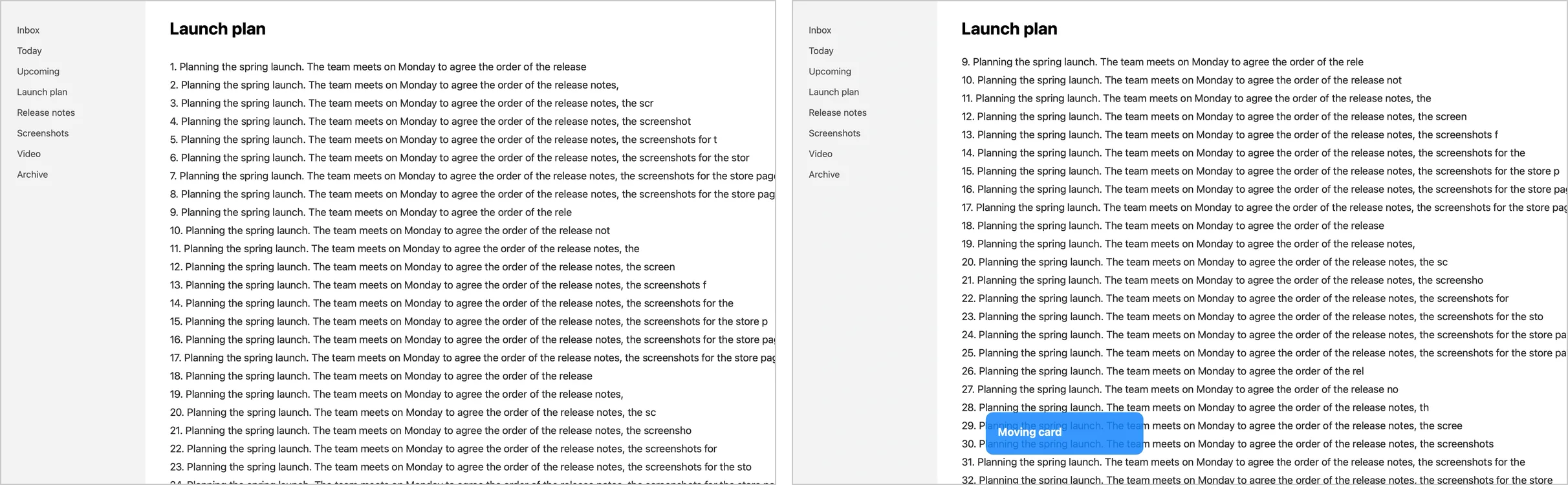
The two test clips. The same window of sample text, 60 seconds still (left) and 60 seconds scrolling with a moving card (right).
| File | Frame | Still, per minute | Moving, per minute | Moving, per hour |
|---|---|---|---|---|
| Built-in recorder, as recorded (H.264) | 2560 × 1600 | 3.2 MB | 102.8 MB | 6.2 GB |
| avconvert 1080p, H.264 | 1920 × 1200 | 2.7 MB | 103.9 MB | 6.2 GB |
| avconvert 1080p, HEVC | 1920 × 1200 | 2.4 MB | 91.0 MB | 5.5 GB |
| avconvert 720p, H.264 | 1280 × 800 | 2.0 MB | 80.9 MB | 4.9 GB |
| avconvert Apple 1080p (30 fps) | 1728 × 1080 | Not run | 77.3 MB | 4.6 GB |
| avconvert Apple 720p (30 fps) | 1152 × 720 | Not run | 51.8 MB | 3.1 GB |
Measured on macOS 27.0.1, 7 October 2026. No sound in any clip. The still clips at 30 frames a second were not made.
Two things stand out. The still minute is tiny because the recorder writes a new frame only when something changes: it averaged 3 frames a second, against 55 while scrolling. And a straight 1080p copy of the moving clip came out slightly bigger than the original, because the converter aims for quality, not for size. Fewer pixels helped a little; fewer pixels and fewer frames together helped most.
Shrink a recording with what the Mac already has
- In Finder, Control-click the recording and find Encode Selected Video Files in the menu, under Quick Actions or Services.
- Pick a setting: H.264 at up to 480p, 720p, 1080p or 4K, or HEVC at up to 1080p or 4K. 720p is a good size for a screen recording you send by email or chat.
- Start it, and keep the original until you have checked the copy.
macOS 27 still ships this Finder action with those settings. For the table above we ran the same sizes from Terminal with avconvert rather than clicking through it, so the timings are avconvert’s.
QuickTime Player does the same from File, Export As, with 4K, 1080p, 720p and 480p, the 4K choice greyed out when the recording is smaller. On our moving clip, the 720p copy took 10 seconds and the 1080p copies 18 seconds. HEVC came out 12% smaller than H.264 at the same size; Macs from the last several years play HEVC, but some older software does not.
For a much smaller file, the setting that matters is the frame rate. Apple’s 720p preset, which also drops to 30 frames a second (and a 1152 by 720 frame), made 51.8 MB a minute, against 80.9 MB for 720p at the original 55. Finder’s menu does not offer a frame rate, so for that you need an app such as HandBrake.
Record a smaller file in the first place
- Record a part of the screen, or one window. In Shift-Command-5, pick Record Selected Portion or Record Selected Window. Half the area is roughly half the pixels to store.
- Keep the screen calm. The recorder only spends space on what changes. Close what animates in the background, and scroll less.
- Use SDR. Apple says the Capture Format option records SDR as H.264 and HDR as HEVC. Our test used the default, SDR, which is the safe choice for sharing.
HandBrake, for the smallest files
HandBrake is free and open source, and it is what most people use when the Mac’s own tools do not shrink enough. Its documentation lists presets such as Fast 1080p30 and Very Fast 720p30, and Social presets that it says are designed to keep a video of a given length under 25 MB. Quality is set as RF, where “a lower RF number produces higher quality video”; the docs suggest RF 20 to 24 for 1080p. It can use the Mac’s own VideoToolbox encoders, which are fast, or x264 and x265, which are slower and smaller. We did not install it, so we have no HandBrake numbers for our clips. Get it only from handbrake.fr.
What Take writes
Take works the other way round from the built-in recorder: it keeps a full quality recording, then you pick the size when you share. The Share sheet shows the size of each quality before you save, and writes an MP4 (H.264) at a set rate, so the size depends on how long the video plays and the quality you pick, not on how much moves.
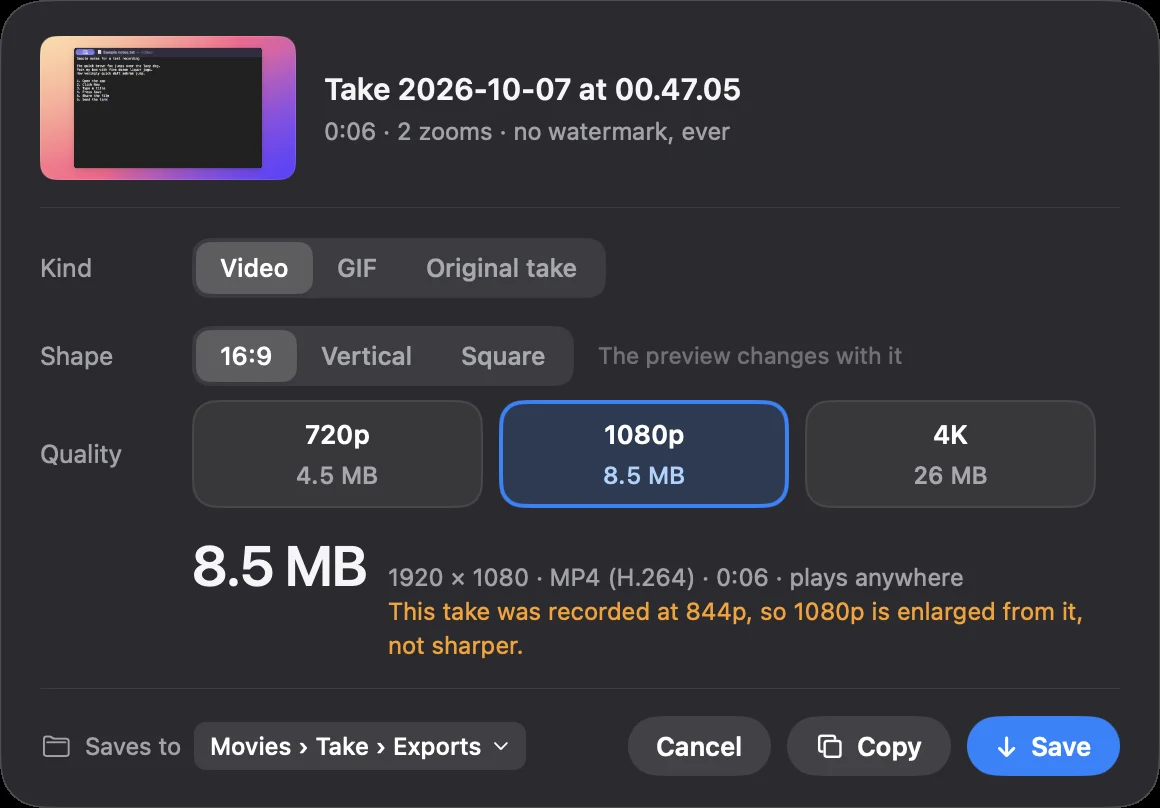
Take's Share sheet on a 6.8 second test take. Each quality shows its size before you save.
| Share quality | Frame (16:9) | Per minute played | Per hour played |
|---|---|---|---|
| 720p | 1280 × 720 | about 39 MB | about 2.3 GB |
| 1080p | 1920 × 1080 | about 74 MB | about 4.4 GB |
| 4K | 3840 × 2160 | about 228 MB | about 13.7 GB |
From the rate in Take 4.0.0’s source, with sound; they match the Share sheet above. The estimate is a ceiling: that 720p test was quoted at 4.5 MB and saved at 3.9 MB.
So for a still screen, the built-in recorder’s raw file is smaller than any Take export. What changes the sum is the edit. A minute where nothing happens is dead air to Take, and it plays four times faster, so that minute fills about 15 seconds of the video, about 10 MB at 720p by the same rate. Take also trims the start and the end on its own. In Settings, Recording quality set to Standard records at 1080p and 30 frames a second (“Smallest files”), and switching off Keep the original recording deletes the full quality recording once you have shared a video.
We did not make a new Take recording of the two test clips for this page: Take was open with its camera switched on, and we do not open its record panel then. The Take numbers here are from its source and the Share sheet above, not from those clips.
Download Take to try it. Recording and editing are free to try · the 7-day trial starts when you first share · macOS 14 or later
Sources
- Apple, How to record the screen on your Mac (SDR uses H.264, HDR uses HEVC) and the Mac User Guide, Take screenshots or screen recordings on Mac. Read 7 October 2026.
- HandBrake: handbrake.fr (1.11.2), and its documentation: Official presets, Adjusting quality, VideoToolbox. Read 7 October 2026; not installed.
- Our own measurements, 7 October 2026, on macOS 27.0.1: the built-in recorder and avconvert on two 60 second clips of a test window. Take 4.0.0’s export sizes from its source (the Share sheet’s rate and estimate) and its Share sheet on a test take made on this Mac the same day.
FAQ
Why are screen recordings on a Mac so big?
They are recorded at the screen's full Retina size, and every change on screen costs space. In our test a still minute was 3.2 MB and a scrolling minute was 102.8 MB, about 6 GB an hour.
How many MB is a 1 minute screen recording on a Mac?
It depends on what moves. On macOS 27, our 60 seconds of a 2560 by 1600 pixel window were 3.2 MB when nothing moved and 102.8 MB when the text scrolled. A full screen of video or animation can be more.
How do I reduce the size of a screen recording on a Mac?
In Finder, Control-click it and choose Quick Actions, Encode Selected Video Files, then a smaller size such as 720p. Our moving clip went from 102.8 MB to 80.9 MB a minute; Apple's 720p preset at 30 frames a second made it 51.8 MB. Recording a smaller area helps most.
Does converting a screen recording to 1080p make it smaller?
Not necessarily. Our 1080p H.264 copy of a moving clip was 103.9 MB a minute against 102.8 MB for the original. Lower resolution and especially a lower frame rate made it smaller.
Is HEVC smaller than H.264?
Yes, a little: our 1080p HEVC copy was 91.0 MB a minute against 103.9 MB for H.264, 12% smaller. Some older apps and devices cannot play HEVC.
Which screen recorder makes small files on a Mac?
For a still screen, the built-in one: it writes a frame only when something changes. Take shows the exact size of each quality before you export and speeds up the still parts, which shortens the video. HandBrake shrinks any file further.
Recordings that arrive finished
Stop the capture and it is already staged: zooms where you clicked, dead air sped up, a real backdrop, and a plain .mov you own. Comes with Crest: $24.99 once for Crest Pro, Take and Minutes.
Get Take with Crest, $24.99 Try free for 7 daysmacOS 14 or later · Universal · no watermark, ever · 7-day trial, no card up front
Keep reading: Zoom in on a recording · Notch teleprompters · Trim, cut, crop or speed up · Record a demo video · Best Mac screen recorders · Take overview