Screen recording not working on a Mac? What to check
Most of the time the recorder has no permission. Open System Settings, Privacy & Security, Screen & System Audio Recording, switch the app on, then quit it and open it again: the switch only counts for a freshly opened app. Shift-Command-5 and QuickTime Player need no switch at all. If the file has no sound, Include System Audio is off. If one window records black, that app protects its picture. If the file seems missing, wait a few seconds after you stop.
Last updated: October 2026
Written by the developer of Take, a Mac screen recorder, on 7 October 2026. Every built-in step on this page was tried on a 16-inch MacBook Pro (Mac16,7) on macOS 27.0.1, recording a window of sample text, and every test file was deleted afterwards. We could not fill a disk, revoke a permission mid-recording or play protected video for this page, so those rows say what Apple and Take's own messages say, not what we saw.
Find your symptom
| What you see | Likely cause | Fix |
|---|---|---|
| The app will not record, or asks for permission every time | Its Screen Recording switch is off | Switch it on, then quit and reopen the app |
| You switched it on and it still fails | The app was open when you did | Quit it with Command-Q and open it again |
| One window is black, the rest records | That app protects its video | Nothing to fix on your Mac |
| The recording has no sound | Include System Audio is off, or only a microphone is picked | Options, Include System Audio |
| You stopped and no file appeared | The file lands when the thumbnail leaves | Wait about 5 seconds, then check Save to |
| It stopped by itself | The disk filled, the window closed, or the permission went off | Free space, keep the window open, check the switch |
Check the permission first
- Open System Settings and click Privacy & Security.
- Click Screen & System Audio Recording.
- Switch on the app you record with.
- Quit the app with Command-Q and open it again. Closing its window is not enough.
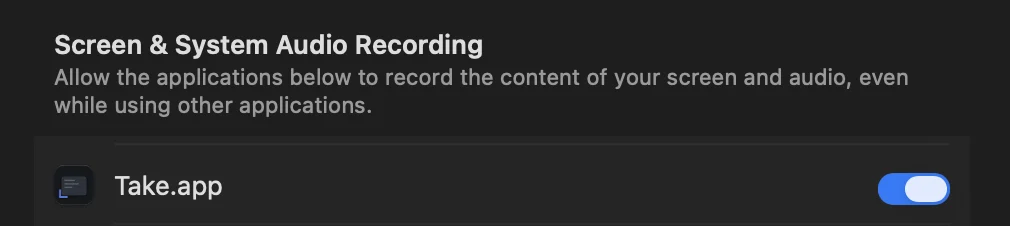
System Settings, Privacy & Security, Screen & System Audio Recording, on macOS 27. The other apps in our list are cut out of the picture.
On macOS 27 this pane has two lists. The top one, Screen & System Audio Recording, lets an app record the screen and its sound. The second, System Audio Recording Only, lets an app record sound and nothing else, so an app that sits only there cannot record your screen. Shift-Command-5 and QuickTime Player were in neither list on our Mac, and they recorded anyway: the built-in tools do not need the switch.
If an app you no longer trust is in the list, switch it off. Since macOS Sequoia, macOS can also ask again from time to time whether an app should keep recording your screen. We could not make that prompt appear on demand for this page, so we have no picture of it. Answer it the same way: allow the app you use to record.
A black window in the recording
If everything records except one app, that app is blocking it. Apple's own guide says you may not be able to take pictures of windows in some apps, such as DVD Player, and streaming apps that protect their video can come out black for the same reason. That is the app's choice, not a fault on your Mac, and no setting changes it. We did not test Apple TV or Apple Music for this page.
No sound in the recording
On macOS 27, press Shift-Command-5, click Options and tick Include System Audio. It starts unticked, and with it off our test file had no sound track at all. A microphone in the same menu only hears the room. The full steps and what we measured are on how to screen record with internal audio.
You stopped and the file is not there
With Show Floating Thumbnail ticked in Options, macOS waits until the thumbnail in the corner of the screen slides away before it writes the file. In our test the file was not on disk 2 seconds after Stop and was there 7 seconds after. Click the thumbnail to open it straight away, or wait. If you still cannot find it, check where Save to points: where screen recordings go on a Mac.
Cannot find the stop button in the first place? See how to stop a screen recording.
It stopped on its own
- The disk filled. A screen recording can take gigabytes an hour. Check free space in System Settings, General, Storage before a long one.
- The window you were recording closed. Record Selected Window follows one window. Record the whole screen or a part of it for anything that opens new windows.
- You pressed Command-Control-Escape. That is the stop shortcut. Force Quit is Option-Command-Escape, one key over.
- The permission was switched off while recording. Without it the recorder loses the screen, so the recording ends.
With Take
Take says which of these happened, in words, instead of leaving you with a black file. These are its own messages. We saw the first two only as they appear in its code, because we did not switch our permission off for this page.
- No permission yet: Take can’t see your screen yet. Turn on Take in System Settings › Privacy & Security › Screen & System Audio Recording. with an Open System Settings button.
- Switched on, not reopened: Screen Recording is on. macOS applies it when Take reopens, so reopen Take to record. with a Reopen Take button.
- Disk full while recording: The disk filled while rolling at the time it happened, and the partial take is in your library. Free at least 2 GB and roll again.
- Permission switched off while recording: Your take up to that second was finalized and saved to the library. Nothing was lost.
Take also writes the recording in two-second pieces, so even a crash leaves a playable file up to the last piece. It records the Mac's sound unless you turn that off. Recording and editing work before you pay.
Download Take to try it. Recording and editing are free to try · the 7-day trial starts when you first share · macOS 14 or later
FAQ
Why can't I screen record on my Mac?
Usually because the app has no permission. Open System Settings, Privacy & Security, Screen & System Audio Recording, switch the app on, then quit and reopen it. Shift-Command-5 needs no permission, so try it to check that recording works at all.
Why is QuickTime screen recording not working?
On macOS 27, QuickTime Player's File, New Screen Recording opens the same toolbar as Shift-Command-5, so the same fixes apply. QuickTime was not in the Screen Recording list on our Mac and recorded without it. If there is no sound, tick Include System Audio under Options.
Why does my screen recording stop automatically?
The usual causes are a full disk, closing the window you were recording, the Screen Recording permission being switched off, or pressing Command-Control-Escape, which is the stop shortcut.
Can I screen record Apple Music or Apple TV?
Apps that protect their video can come out black in a recording, and no Mac setting changes that. Apple's guide names DVD Player as one app that blocks screenshots. We did not test Apple TV or Apple Music.
I stopped the recording but there is no file. Where is it?
Wait a few seconds: with Show Floating Thumbnail on, the file is written when the thumbnail leaves, about 5 seconds in our test. It goes to the Desktop unless Options, Save to says otherwise.
Do I need to restart my Mac after allowing Screen Recording?
No. macOS applies the switch when the app opens again, so quitting it with Command-Q and reopening it is enough.
Recordings that arrive finished
Stop the capture and it is already staged: zooms where you clicked, dead air sped up, a real backdrop, and a plain .mov you own. Comes with Crest: $24.99 once for Crest Pro, Take and Minutes.
Get Take with Crest, $24.99 Try free for 7 daysmacOS 14 or later · Universal · no watermark, ever · 7-day trial, no card up front
Keep reading: Stop a screen recording · Trim, cut, crop or speed up · Where recordings go · Record with internal audio · Best Mac screen recorders · Take overview