How to turn a Mac screen recording into a GIF
The Mac has no Save as GIF. QuickTime Player's Export As offers 4K, 1080p, 720p, 480p and Audio Only, and Finder's Encode Selected Video Files makes H.264 or HEVC. The free way that worked on our Mac is ffmpeg, one Terminal command with a colour palette: a 5.7 second recording became a 301 KB GIF, 640 pixels wide at 12 frames a second. If you would rather not use Terminal, Gifski is a free Mac app for exactly this. Take, our recorder, saves a GIF straight from its Share sheet.
Last updated: October 2026
Written by the developer of Take, a Mac screen recorder, on 7 October 2026. Every built-in step on this page was tried that day on a 16-inch MacBook Pro (Mac16,7) on macOS 27.0.1, recording a window of sample text, and the test file was deleted afterwards. Gifski and Apple's Shortcuts were not tried; what this page says about them comes from their own pages. Take's GIF facts come from its source and its own tests, as explained below.
What the Mac can and cannot do
On macOS 27 we checked the two places you would expect. QuickTime Player's File, Export As lists 4K, 1080p, 720p, 480p and Audio Only. Finder's Quick Action, Encode Selected Video Files, makes H.264 or HEVC video. Neither makes a GIF, so you need one more tool. If you have not recorded yet, how to screen record on a Mac covers that first.
Record small. A GIF has no sound, holds 256 colours per frame, and grows fast with size and length, so record a part of the screen or one window and keep it to a few seconds.
Free: ffmpeg, one command
- Install ffmpeg. With Homebrew that is
brew install ffmpeg. It is free and open source. - Open Terminal, type
cdand a space, drag the folder with your recording onto the window, and press Return. - Run the command below, with your file's name in place of Screen Recording.mov.
- Open recording.gif in Finder with the Space bar to check it.
ffmpeg -i "Screen Recording.mov" -vf "fps=12,scale=640:-1:flags=lanczos,split[a][b];[a]palettegen[p];[b][p]paletteuse" -loop 0 recording.gifWhat the parts do: fps=12 keeps 12 frames a second, scale=640:-1 makes it 640 pixels wide, the palettegen and paletteuse pair picks the 256 colours from your video instead of a generic set, and -loop 0 makes it loop forever.
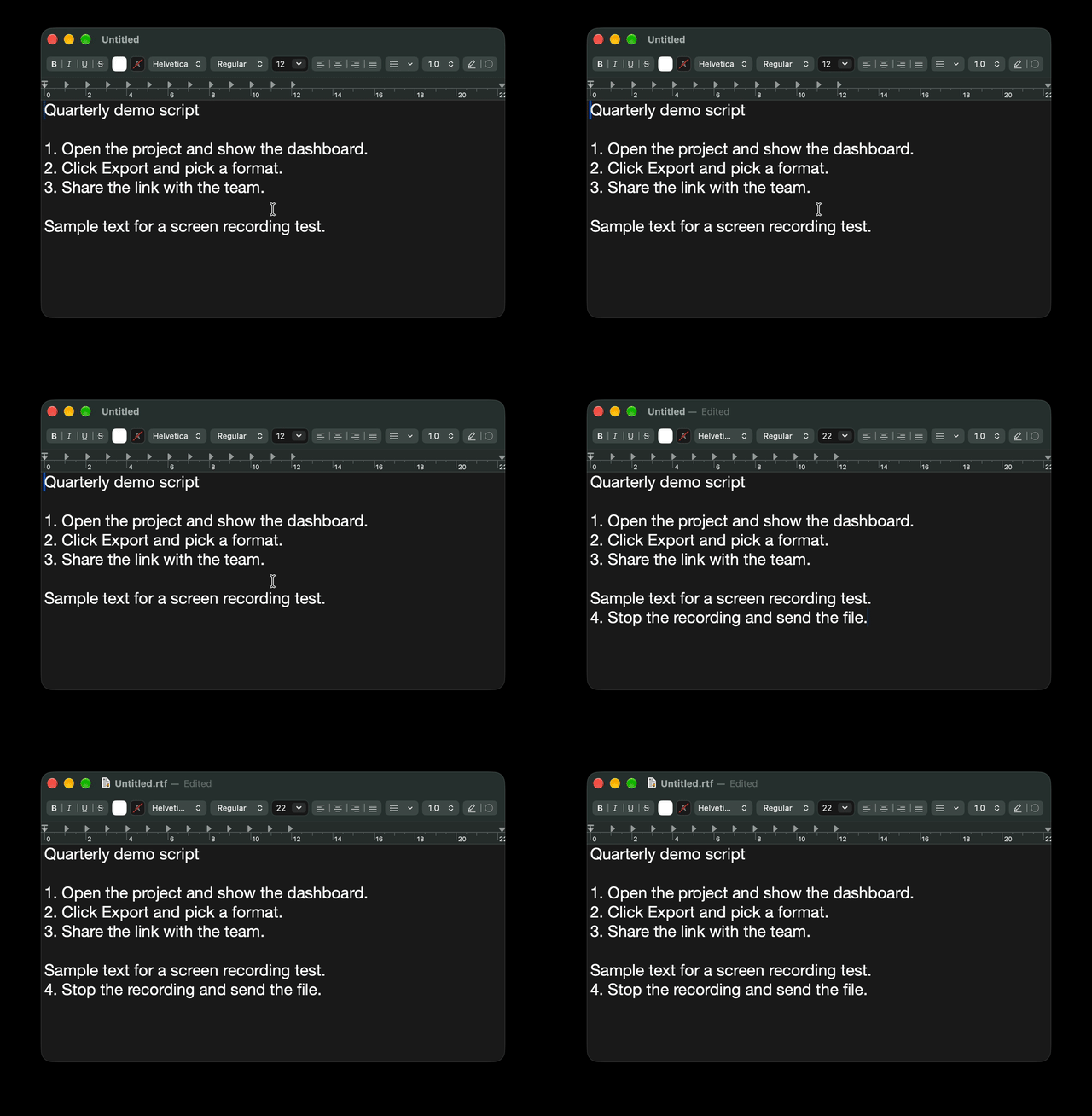
The GIF ffmpeg made from our test recording: 640 pixels wide, 12 frames a second, 301 KB. The black border is the window’s shadow: a window recording keeps it, and a GIF has no soft transparency, so record a part of the screen instead if the GIF goes on a light page.
What we measured
| File | Frames | Size | Colours |
|---|---|---|---|
| The recording | 5.7 s .mov, 1504 by 1024 | 671 KB | As recorded |
| ffmpeg, plain | 1504 by 1024, every frame | 788 KB | Grey turned olive and grainy |
| ffmpeg, palette, full size | 1504 by 1024 | 2.6 MB | Right |
| ffmpeg, palette, 640 wide, 12 fps | 640 by 436, 69 frames | 301 KB | Right |
ffmpeg 8.1.2 on macOS 27.0.1, 7 October 2026. A TextEdit window of sample text with one line typed during the recording. Each conversion took under a second.
Two lessons. The plain command, ffmpeg -i in.mov out.gif, is the one most people try first, and it uses a generic palette: our dark grey window came out olive and grainy. The palette fixes that. And size is mostly pixels and frames: the same palette GIF at full size was 2.6 MB, almost nine times the 640 pixel one at 12 frames a second. A GIF can even be bigger than the video it came from: two of our three were.
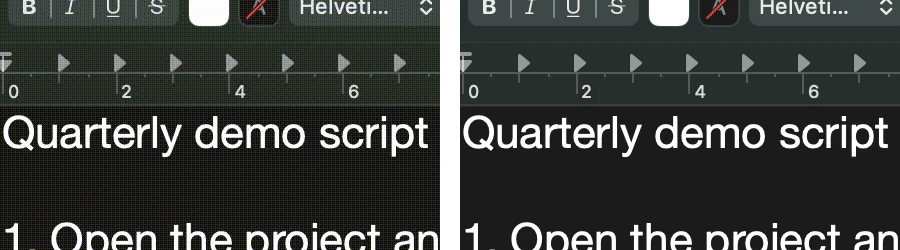
Left, the plain command. Right, with a palette. Same frame, same size. Without the palette the grey turned olive.
Free apps, without Terminal
- Gifski. Free and open source, by Sindre Sorhus, from the Mac App Store. Its page says it converts videos to GIFs that use thousands of colours per frame. The App Store version needs macOS 26 or later; the gif.ski site offers a download for macOS 13. Not tried here.
- Shortcuts. Apple's Shortcuts app has a Make GIF action that is often suggested for this. We did not build that shortcut, so we cannot say how its GIFs compare.
- Online converters. They work without installing anything, but your recording is uploaded to someone else's server. Do not use one for anything with customer data, passwords or private messages on screen.
With Take: Share as GIF
- Record with Take and stop. The take is already trimmed, with the pauses sped up and zooms where you clicked.
- Click Share, then click GIF in the Kind row.
- Pick a shape (16:9, vertical or square) and a size: Small, Medium or Large. The sheet shows how big the file will be before you start.
- Click Save, or Copy to put the GIF on the clipboard as a file, ready to paste into a chat or an email.
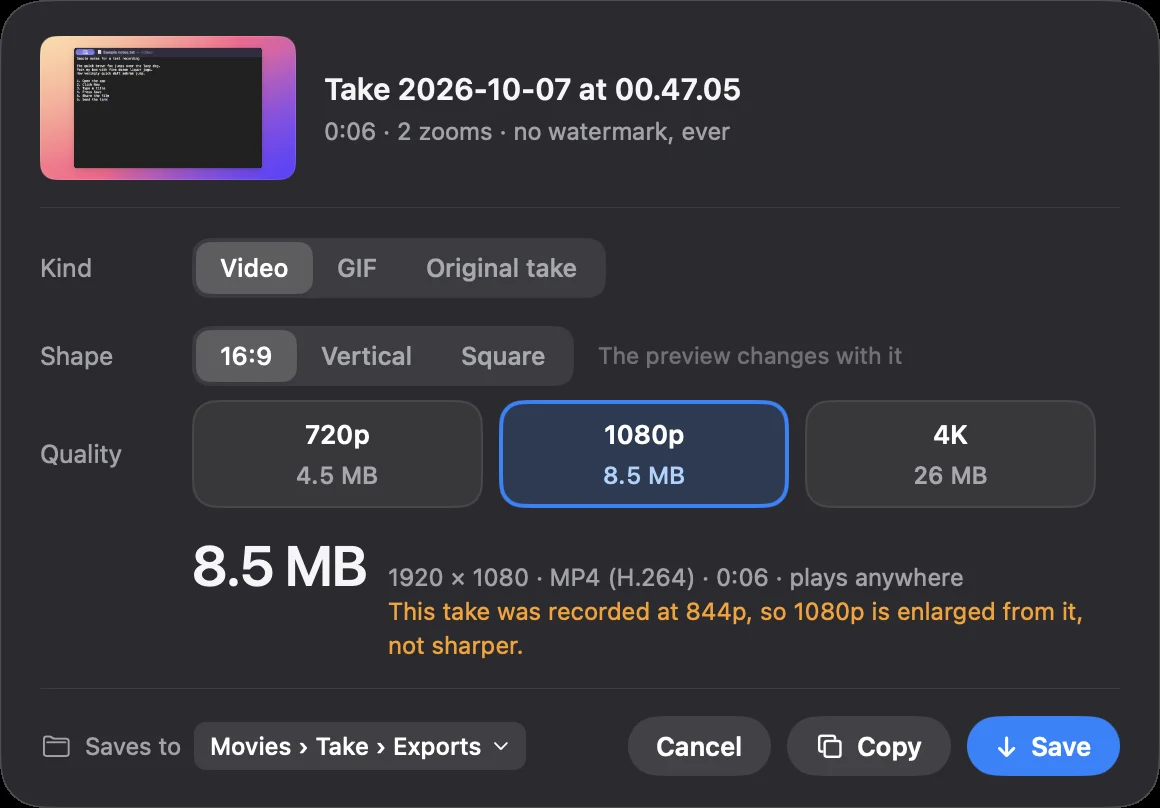
Take's Share sheet, from an earlier test, with Video picked. Click GIF in the Kind row and the qualities become Small, Medium and Large.
What it writes, from Take 4.0.0's source: 12 frames a second, at 0.6 of the video's size, so a 16:9 GIF is 768 by 432 at Small and 1152 by 648 at Medium. It loops forever and has no sound. Because the pauses are already sped up, the GIF is shorter than the recording, and a short GIF is a small one.
How we checked: Take's camera switch was on on our test Mac, and we do not open its record panel then, so we made no new take for this page. Instead we ran Take's own test for GIF export on its 4.0.0 code: a two second take came out as 24 frames, 768 by 432, set to loop forever.
Download Take to try it. Recording and editing are free to try · the 7-day trial starts when you first share · macOS 14 or later
Which way to pick
| Way | Cost | Tried here |
|---|---|---|
| ffmpeg in Terminal | Free | Yes |
| Gifski | Free | No |
| Shortcuts, Make GIF | Free, built in | No |
| An online converter | Usually free | No |
| Take, Share as GIF | $24.99 once, with Crest and Minutes | Its own test, not a new take |
FAQ
How do I turn a screen recording into a GIF on a Mac?
macOS cannot do it on its own. Use the free ffmpeg command with a palette, the free Gifski app, or a recorder that exports GIF, such as Take.
Can QuickTime save a video as a GIF?
No. On macOS 27, QuickTime Player's Export As offers 4K, 1080p, 720p, 480p and Audio Only.
How do I make a GIF smaller?
Make it narrower and use fewer frames. In our test the same clip was 2.6 MB at full size and 301 KB at 640 pixels wide and 12 frames a second. Shorter helps most of all.
Why does my GIF have the wrong colours?
A GIF holds 256 colours per frame, and a plain conversion picks a generic set. In our test a dark grey window turned olive. ffmpeg's palettegen and paletteuse filters pick the colours from your video.
Can a GIF have sound?
No. A GIF is pictures only. To send a clip with sound, send the video, or an MP4, instead.
Does Take export GIF?
Yes. In Take's Share sheet, pick GIF, a shape and Small, Medium or Large. It writes 12 frames a second, loops forever and has no sound.
Recordings that arrive finished
Stop the capture and it is already staged: zooms where you clicked, dead air sped up, a real backdrop, and a plain .mov you own. Comes with Crest: $24.99 once for Crest Pro, Take and Minutes.
Get Take with Crest, $24.99 Try free for 7 daysmacOS 14 or later · Universal · no watermark, ever · 7-day trial, no card up front
Keep reading: Record with internal audio · Record your screen and your face · Trim, cut, crop or speed up · Screen recording file size · Loom alternatives for Mac · Best Mac screen recorders · Take overview