How to see your calendar in the Mac menu bar
macOS shows the date and the day of the week in the menu bar, but not your events: Menu Bar settings on macOS 27 has no calendar item. The closest built-in route is one click away. Click the date and time to open Notification Center, where the Calendar app’s widgets show your next events or the month. To see your next meeting without clicking, you need an app, such as a menu bar calendar or a notch app like Crest.
Last updated: October 2026
Written by the developer of Crest, 7 October 2026. Everything here was tried that day on a 16-inch MacBook Pro (Mac16,7) on macOS 27.0.1, with four test events in a calendar made for the purpose and deleted afterwards; the pictures show only those. Itsycal, Dato and Fantastical are described from their own sites, read the same day; we did not install them.
What the menu bar shows on its own
- Open System Settings and click Menu Bar.
- Click Clock Options, next to the clock.
- Turn on Show date and Show the day of the week.
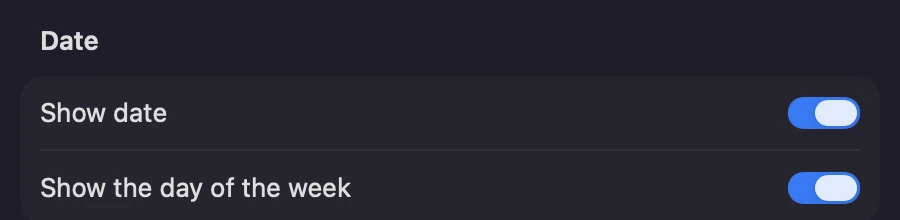
System Settings, Menu Bar, Clock Options: the date and the day are as much calendar as the menu bar shows.
That is as far as it goes. We read every item under Menu Bar Controls on macOS 27: Siri, Wi-Fi, Bluetooth, Battery, AirDrop, Focus, Screen Mirroring, Display, Sound, Now Playing, the user switcher, Text Input, Time Machine, Keyboard Brightness, VPN, Timer and Weather. Weather and a running timer can sit in the menu bar; your calendar cannot.
Your events, one click away: the Calendar widget
- Click the date and time in the menu bar. Notification Center opens on the right.
- Scroll to the bottom and click Edit Widgets.
- Pick Calendar and one of its widgets: Up Next for the next events, List for more of the day, or Month for the month with today marked.
- Click Done. From then on, one click on the date shows your events.
Those are the names macOS 27 gives the Calendar widgets. There is no picture of this step: on our test Mac, Notification Center is full of the owner’s own notifications. The widget shows whatever the Calendar app shows, so it is as current as your calendars are.
Google Calendar and Outlook events
The menu bar clock, the Calendar widget and most calendar apps read the Mac’s own calendar store. To get Google or work events in, add the account to the Mac once.
- Open System Settings, then Internet Accounts, and click Add Account.
- Click choose from a list. Pick Google for a Google calendar, or Microsoft Exchange for a work calendar on Microsoft 365.
- Sign in and leave Calendars switched on for that account.
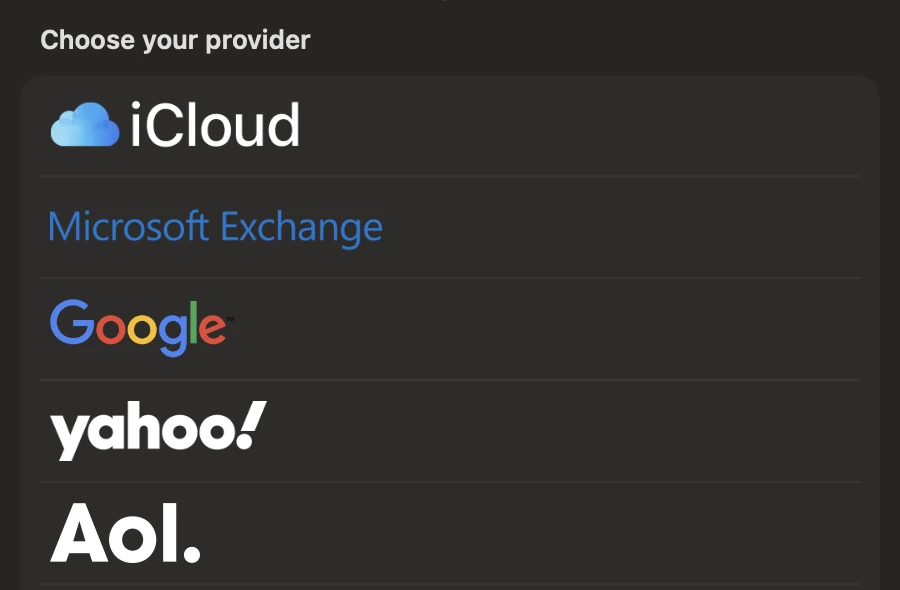
Internet Accounts, Add Account, then choose from a list. Tick Calendars for the account and its events join the Mac’s calendar.
A calendar you only open in a browser tab is invisible to the Mac until you do this.
Your next meeting on the notch: Crest
Crest, a Mac notch app, reads the same calendars and keeps the next meeting where the menu bar clock is: on the notch. It needs Calendar access the first time.

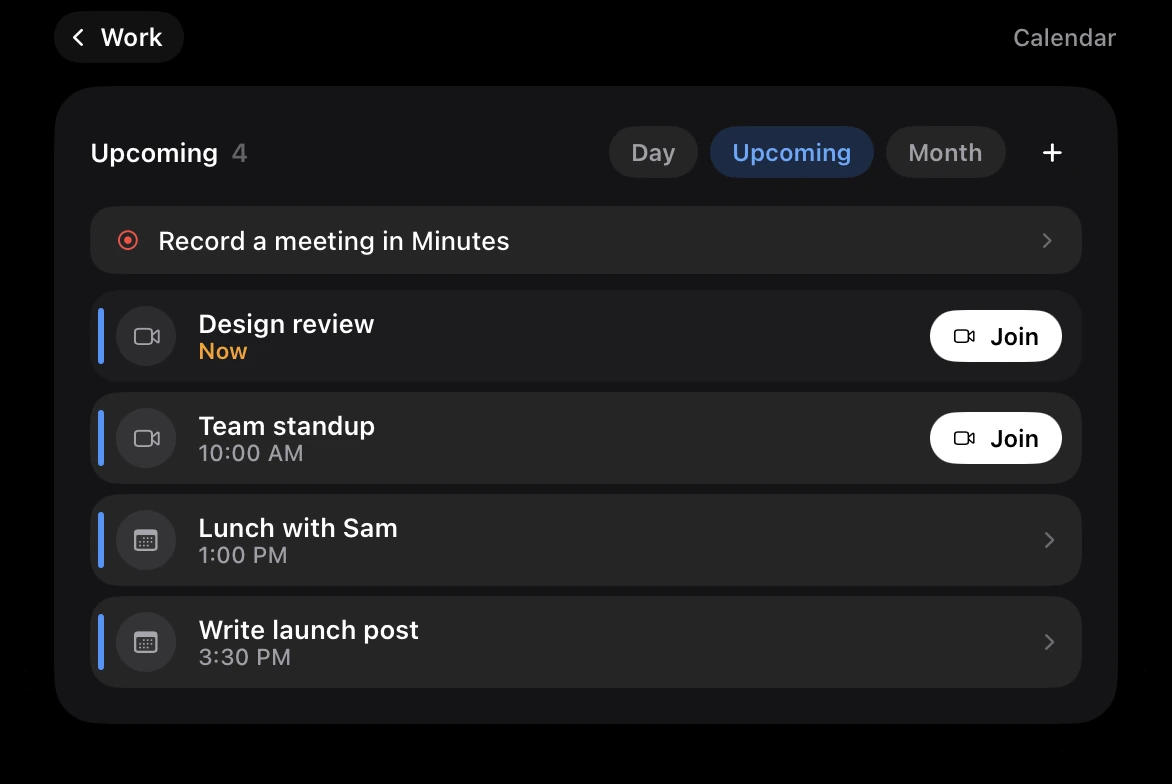
- On the closed notch: a meeting with a call link appears 15 minutes before it starts, counts down, and stays until it ends.
- Join: from 2 minutes before the start, a meeting with a Zoom, Google Meet, Microsoft Teams, Webex or Whereby link gets a Join button that opens the call. Crest plays a chime at that moment; Settings, Live activities, Chime when a meeting can be joined turns it off.
- The Calendar widget: the next event at its small size, the next three at medium, your day as a timeline at large. Click it for Day, Upcoming and Month, and + for a new event.
- What it costs: the Calendar widget, Join and the meeting on the notch are part of Crest Pro, or the free week: sign in from Crest and every Pro widget is yours for 7 days, no card. After that, Crest Pro, Take and Minutes come together: all three for $24.99 once, or $2.99 a month.
If you only want to glance at the date, the menu bar already does it. Crest is worth it when you keep missing the start of calls.
Menu bar calendar apps
| App | Price, read 7 October 2026 | What sits at the top | Join a call |
|---|---|---|---|
| macOS (built in) | Free | The date and day in the menu bar; events in a widget one click away | No |
| Crest | Crest Pro; 7 free days | The next meeting on the notch from 15 minutes before; your day in a widget | Zoom, Meet, Teams, Webex, Whereby |
| Itsycal | Not stated on its page | A small month calendar from the menu bar, with your events | Yes, by its page |
| Dato | $18 once | A menu bar calendar with world clocks | Yes, 50+ services by its page |
| Fantastical | Free tier; paid plans with a 14-day trial | A full calendar app; its menu bar part not checked | Not checked |
From each app’s own site. Only macOS and Crest were tried on this Mac.
Itsycal is the small classic: a month in the menu bar, with your events and meeting joining. Dato adds world clocks and full-screen meeting reminders. Fantastical is a whole calendar app rather than a menu bar add-on. Crest is the one for a notch: it puts the meeting itself at the top, not a calendar icon.
Sources
- Our own run, 7 October 2026, on a 16-inch MacBook Pro with macOS 27.0.1: System Settings, Menu Bar (every Menu Bar Controls item and Clock Options), Internet Accounts, Add Account, and the Calendar widget names in macOS 27’s own files. Test events only, in a calendar made for the test and deleted afterwards.
- Apple, Clock User Guide: Set timers in Clock on Mac (“click the time in the menu bar” opens the widgets). Read 7 October 2026.
- Itsycal: mowglii.com/itsycal. Dato: sindresorhus.com/dato. Fantastical: flexibits.com/pricing. Read 7 October 2026; none installed.
- Crest 6.4.1, tried on this Mac on 7 October 2026, and its source: MeetingManager.swift, CalendarWidget.swift, CalendarScreen.swift and the Pro rule in LicenseManager.swift.
FAQ
How do I show the calendar in the Mac menu bar?
macOS shows only the date and day there: System Settings, Menu Bar, Clock Options, Show date. For your events, click the date to open Notification Center and add a Calendar widget, or use an app such as a menu bar calendar or Crest.
Can I see my next meeting in the Mac menu bar?
Not with macOS alone. The Calendar widget in Notification Center shows it one click away. Crest shows a meeting with a call link on the notch from 15 minutes before it starts, with Join.
How do I get Google Calendar into the Mac menu bar?
Add your Google account in System Settings, Internet Accounts, with Calendars on. Then the Calendar widget and apps that read the Mac's calendars, Crest included, show your Google events.
How do I see Outlook calendar events from the menu bar?
Add the account in System Settings, Internet Accounts, choosing Microsoft Exchange for a Microsoft 365 work account, with Calendars on. Its events then reach the Calendar widget and Crest.
Is there a free menu bar calendar for Mac?
The built-in route is free: the date in the menu bar and the Calendar widget in Notification Center. Crest's Calendar widget is part of Crest Pro, with 7 free days.
Try Crest free
Download it with no account. Now Playing, the Shelf, the Clipboard and window snapping are free for good, and signing in gives you 7 days of Pro with no card. Pro, with Take and Minutes, is $24.99 once, on 2 Macs, or $2.99 a month.
Download Crest for macOS Get Crest Pro, $24.99Free forever. Pro free for 7 days, no card needed.
macOS 14 Sonoma or later · signed and notarized by Apple · 7-day refund
Keep reading: Weather in the menu bar · A Pomodoro timer on your Mac · Menu bar icons behind the notch · Clipboard history on a Mac · Best Mac notch apps in 2026 · Crest overview