How to show the weather in the Mac menu bar
Open System Settings, click Menu Bar, and tick Weather under Menu Bar Controls. The temperature and an icon for the sky then sit in the menu bar; click them for the next hours, your other places and the Weather app. No app to install: Apple’s guide gives it for macOS Sequoia 15.2 and later, including Tahoe 26 and macOS 27, and we tested it on macOS 27.
Last updated: October 2026
Written by the developer of Crest, 7 October 2026. Every step was tried that day on a 16-inch MacBook Pro (Mac16,7) on macOS 27.0.1. The pictures leave out the owner’s place names; Crest’s weather was pinned to London for its pictures and set back afterwards.
Turn on the weather in the menu bar
- Open System Settings and click Menu Bar in the sidebar.
- Scroll to the bottom of Menu Bar Controls.
- Tick Weather. The temperature appears in the menu bar straight away.

System Settings, Menu Bar, at the bottom of Menu Bar Controls. Tick Weather.

The result: the sky and the temperature, here a clear night at 18°C, beside the other icons.
Click it and a menu opens with the place, the high and low, the next few hours, the other places in your Weather list and Open Weather.
Change the place, or switch to Fahrenheit
- The place: the menu bar shows the place at the top of your list in the Weather app. Open Weather from the menu and drag the place you want to the top. On our Mac the top one was My Location, which needs Location Services for Weather.
- Celsius or Fahrenheit: in the Weather app, choose Weather, Settings. Temperature offers Celsius, Fahrenheit, or Use system setting, which follows System Settings.
Turn it off
Untick Weather in System Settings, Menu Bar. In our test the item left the menu bar at once, and ticking it again put it back in the same spot.
On macOS before Sequoia 15.2
There is no weather item for the menu bar. The Weather widget is the built-in option: click the date and time to open Notification Center, click Edit Widgets at the bottom, and add Weather there.
The forecast on the notch: Crest
The built-in item is free and does the job for most people. Crest, a Mac notch app, is for when you want more than the temperature without opening an app, or when the menu bar beside the notch is already full (icons hidden behind the notch is a common reason).

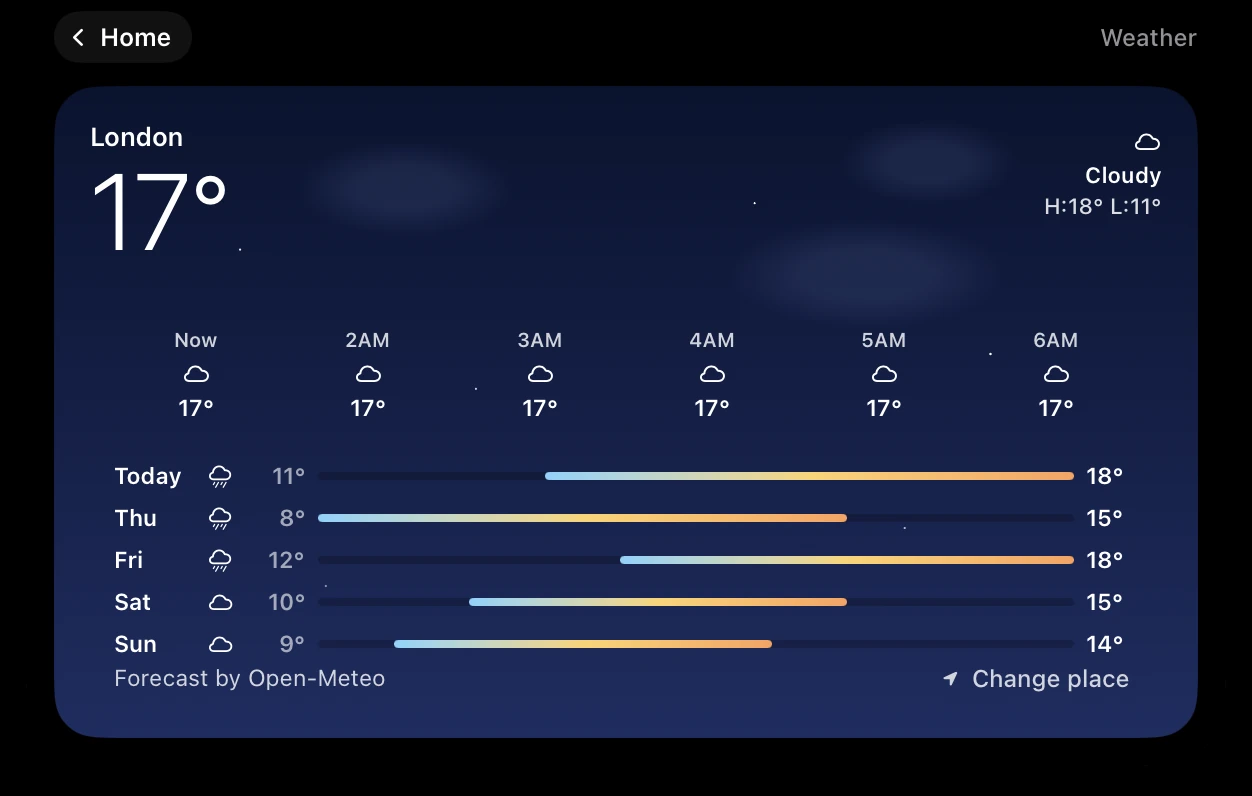
- Three sizes: the place, temperature and high and low at small; the next six hours at medium; five days at large.
- Where it looks: Crest asks no Location permission. It finds your city from your network, or you pin any city with Change place. The forecast comes from Open-Meteo and refreshes every 15 minutes while the widget is on screen.
- Units follow your Mac’s temperature setting.
- What it costs: the Weather widget is part of Crest Pro, or the free week: sign in from Crest and every Pro widget is yours for 7 days, no card. After that, Crest Pro, Take and Minutes come together: all three for $24.99 once, or $2.99 a month.
Sources
- Apple, Weather User Guide: See weather status in the menu bar (macOS 15.2 or later; the place at the top of your list is the one shown). Read 7 October 2026.
- Our own run, 7 October 2026, on a 16-inch MacBook Pro with macOS 27.0.1: the Weather switch turned off and on, the menu opened, and Weather’s Settings read. The menu’s own place names are not pictured.
- Crest 6.4.1, tried on this Mac on 7 October 2026, and its source: WeatherService.swift, WeatherWidget.swift and the Pro rule in LicenseManager.swift.
FAQ
How do I show the weather in my Mac menu bar?
Open System Settings, click Menu Bar, and tick Weather under Menu Bar Controls. Apple's guide gives it for macOS Sequoia 15.2 and later; we tested it on macOS 27.
How do I show the temperature in the Mac menu bar?
The Weather item does it: System Settings, Menu Bar, tick Weather. It shows the temperature and an icon for the sky, and clicking it shows the next hours.
How do I change the location of the weather in the Mac menu bar?
It shows the place at the top of your Weather app list. Click the menu bar weather, choose Open Weather, and drag the place you want to the top.
How do I change the menu bar weather to Fahrenheit?
In the Weather app, choose Weather, Settings, and pick Fahrenheit under Temperature, or Use system setting to follow System Settings.
How do I remove the weather from the Mac menu bar?
Untick Weather in System Settings, Menu Bar. It disappears at once.
Why is there no weather option in my Menu Bar settings?
The Weather item needs macOS Sequoia 15.2 or later. On older versions, add the Weather widget to Notification Center instead.
Try Crest free
Download it with no account. Now Playing, the Shelf, the Clipboard and window snapping are free for good, and signing in gives you 7 days of Pro with no card. Pro, with Take and Minutes, is $24.99 once, on 2 Macs, or $2.99 a month.
Download Crest for macOS Get Crest Pro, $24.99Free forever. Pro free for 7 days, no card needed.
macOS 14 Sonoma or later · signed and notarized by Apple · 7-day refund
Keep reading: Calendar in the menu bar · A Pomodoro timer on your Mac · Menu bar icons behind the notch · Clipboard history on a Mac · Best Mac notch apps in 2026 · Crest overview